Introduction
Want to stop your Duolingo subscription before the next billing date? To cancel a Duolingo subscription, you need to follow the correct steps based on where you purchased it. iPhone, Android, and Google Play users may need to use different cancellation settings.
Canceling the app or deleting your Duolingo account does not automatically cancel a paid subscription. You need to use the correct cancellation method to prevent future charges.
This guide explains how to cancel your Duolingo subscription on different devices, how to stop a free trial, what happens to your Super Duolingo access, and whether you can request a refund after canceling.
How to Cancel a Duolingo Subscription
You can cancel your Duolingo subscription by using the same platform where you purchased it. For example, iPhone users manage the subscription through Apple settings, while Android users may need to use Google Play.
Before canceling, check your current subscription and renewal date. This helps you avoid another charge and confirms which platform manages your billing.
Check Where You Started the Subscription
Your cancellation method depends on where you subscribed:
- iPhone or iPad: Manage the subscription through your Apple account settings.
- Android: Check your subscriptions in Google Play.
- Google Play: Open Google Play and manage Duolingo from your subscription list.
- Duolingo website: Use your account settings if you purchased the subscription directly from Duolingo.
Cancel Before the Next Billing Date
Try to cancel before your next renewal date to avoid another charge. After you cancel, check your subscription settings to confirm that automatic renewal has stopped.
You can usually continue using your paid Duolingo features until the current subscription period ends. Canceling generally stops future renewals rather than immediately removing your existing access.
How to Cancel Duolingo Subscription on iPhone
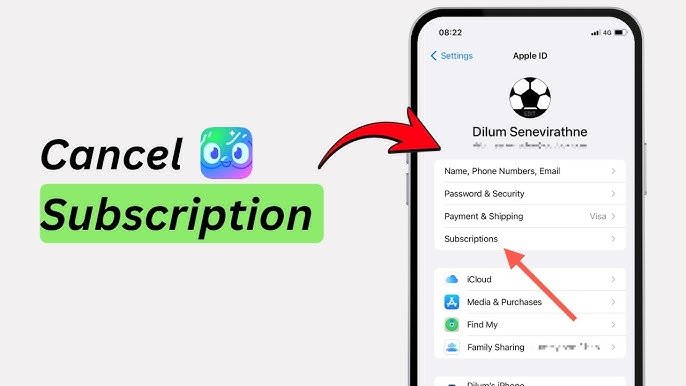
If you purchased your Duolingo subscription through an iPhone or iPad, Apple manages the billing and cancellation. You can stop the subscription from your Apple account settings without deleting the Duolingo app.
Steps to Cancel Duolingo on iPhone
- Open the Settings app on your iPhone.
- Tap your Apple ID name at the top of the screen.
- Select Subscriptions.
- Find Duolingo in your active subscriptions.
- Tap Duolingo to open the subscription details.
- Select Cancel Subscription or the available cancellation option.
- Follow the instructions on the screen to confirm your choice.
Afterward, return to the Subscriptions section and check Duolingo’s status. You should see information showing whether the subscription will renew.
What Happens After You Cancel on iPhone?
Canceling the subscription normally stops the next renewal rather than immediately removing your paid access. You can generally continue using Super Duolingo features until the current billing period ends.
For example, if your subscription renews on August 30 and you cancel it on August 20, you may continue using the paid features until the current period expires.
What If You Can’t Find Duolingo in Subscriptions?
If Duolingo does not appear in your Apple subscriptions, you may have started the subscription through another platform. Check your Google Play subscriptions or your Duolingo account to find the service that handles your billing.
Also, deleting the Duolingo app does not cancel your subscription. You must cancel the subscription through the platform that manages your payments.
How to Cancel Duolingo Subscription on Android
If you subscribed to Duolingo through an Android phone, you can usually manage the subscription through Google Play. You do not need to delete the Duolingo app to stop future charges.
Steps to Cancel Duolingo on Android
- Open the Google Play Store on your Android phone.
- Tap your profile picture in the top-right corner.
- Select Payments & subscriptions.
- Tap Subscriptions.
- Find and select Duolingo.
- Tap Cancel subscription.
- Follow the instructions Google Play displays to confirm the cancellation.
Afterward, return to your subscription list and check Duolingo’s status. Make sure Google Play shows that the subscription will not renew.
What Happens After Canceling on Android?
Canceling your subscription usually stops the next renewal instead of removing your paid features immediately. You can generally continue using Super Duolingo until the current subscription period ends.
For example, if Google Play schedules your next charge for September 10 and you cancel on September 1, you may continue using your paid features until the current period expires.
Can’t Find Duolingo in Google Play?
If Duolingo does not appear under your Google Play subscriptions, you may have purchased it through another platform. Check your Duolingo account or Apple subscriptions if you previously used an iPhone.
Also, uninstalling the Duolingo app does not cancel your subscription. You must cancel it through the platform that manages your billing.
How to Cancel Duolingo Subscription Through Google Play
If you purchased your Duolingo subscription through Google Play, you need to manage the subscription from your Google account. Removing the Duolingo app from your phone will not stop Google Play from renewing the subscription.
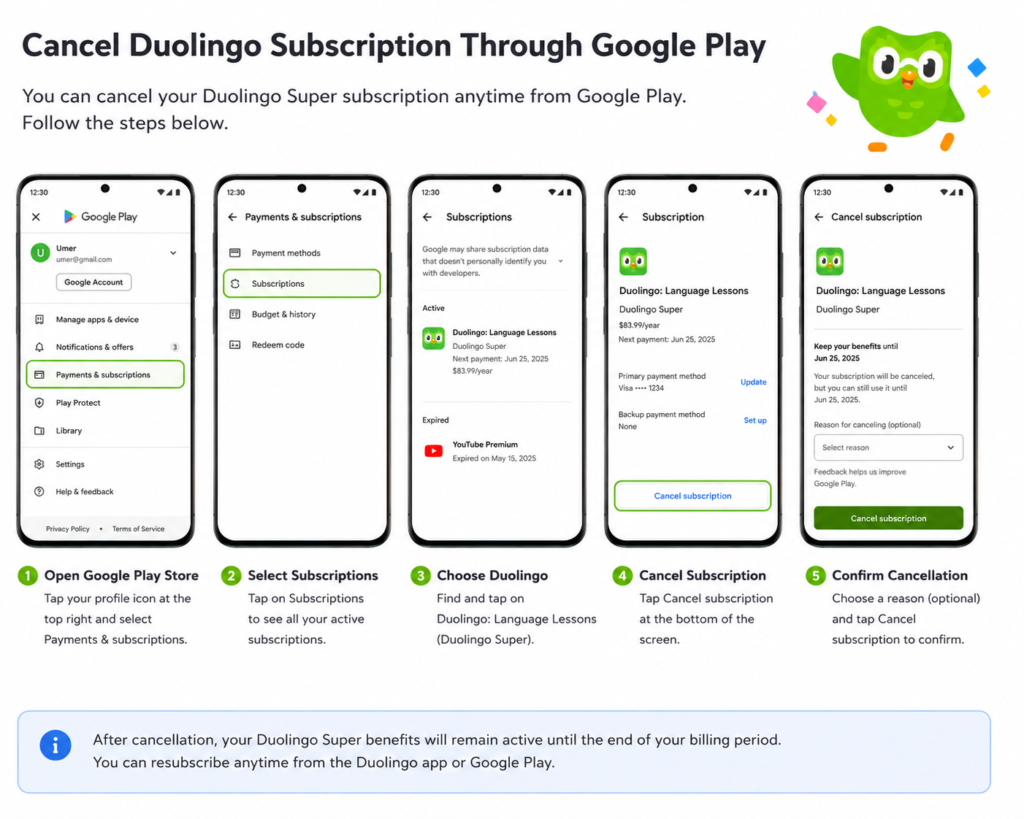
Steps to Cancel Duolingo Through Google Play
- Open the Google Play Store on your Android device.
- Make sure you are signed in to the Google account that purchased Duolingo.
- Tap your profile picture in the top-right corner.
- Select Payments & subscriptions.
- Tap Subscriptions.
- Find Duolingo in your subscription list.
- Open the Duolingo subscription details.
- Tap Cancel subscription.
- Follow the instructions Google Play provides.
- Confirm the cancellation when Google asks you to do so.
Once you finish, open the subscription details again and check the renewal information. This gives you a quick way to confirm that Google Play no longer plans to renew the subscription.
What If Duolingo Does Not Appear?
If you cannot find Duolingo under Subscriptions, check that you are using the correct Google account. Many people have more than one Google account on their phone, and the subscription may belong to a different account.
You can also search your email for the original Google Play purchase receipt. The receipt can help you identify which Google account you used when you purchased the subscription.
What Happens to Super Duolingo After Cancellation?
Canceling through Google Play normally stops future renewals. You can generally continue using your paid Duolingo features until the current billing period ends.
For example, if your next renewal date falls on September 15 and you cancel on September 5, Google Play should not charge you for another subscription period. You may still have access to your current paid features until the existing period expires.
What If You Already Uninstalled Duolingo?
Uninstalling the app does not cancel a Google Play subscription. Google Play manages the recurring payment separately from the app installed on your phone.
If you already deleted Duolingo, simply reinstalling the app is not necessary to cancel the subscription. Open Google Play, go to Payments & subscriptions → Subscriptions, select Duolingo, and check whether the subscription remains active.
Check Your Cancellation Status
After canceling, keep the confirmation information until the current subscription period ends. You can also check your Google Play subscription page again to make sure the renewal status has changed.
If Google Play still shows an active renewal after you completed the cancellation steps, review the account you used for the purchase or contact Google Play support for help.
How to Cancel a Duolingo Free Trial
You can cancel a Duolingo free trial before it renews into a paid subscription. The cancellation steps depend on where you started the trial, such as Apple, Google Play, or another supported platform.
Cancel a Duolingo Free Trial on iPhone
If you started the trial through Apple, open your iPhone’s Settings and follow these steps:
- Tap your Apple ID name.
- Select Subscriptions.
- Choose Duolingo.
- Tap Cancel Free Trial or the available cancellation option.
- Confirm the cancellation.
Afterward, check the Duolingo subscription page to make sure the trial will not renew.
Cancel a Free Trial on Android
For a trial started through Google Play:
- Open the Google Play Store.
- Tap your profile picture.
- Select Payments & subscriptions.
- Tap Subscriptions.
- Choose Duolingo.
- Tap Cancel subscription.
- Follow the instructions to confirm.
Cancel Before the Trial Ends
Pay attention to the trial’s renewal date. If you do not cancel before the trial period ends, the platform may automatically start charging you for the selected Duolingo subscription plan.
You can check the renewal date in your Apple or Google Play subscription settings. Canceling early can help you avoid an unexpected charge.
Does Canceling a Free Trial Remove Access?
Canceling a trial does not always mean you lose access immediately. The platform may allow you to use the trial until its scheduled end date.
After canceling, check the subscription details to see the exact date when your trial or paid features will end.
Don’t Just Delete the Duolingo App
Deleting Duolingo from your phone does not cancel the free trial. The subscription remains connected to the Apple or Google Play account that started it.
Always use the appropriate subscription settings to stop the trial and prevent the platform from charging you.
How to Cancel a Duolingo Free Trial
You can cancel a Duolingo free trial before it renews into a paid subscription. The cancellation steps depend on where you started the trial, such as Apple, Google Play, or another supported platform.
Cancel a Duolingo Free Trial on iPhone
If you started the trial through Apple, open your iPhone’s Settings and follow these steps:
- Tap your Apple ID name.
- Select Subscriptions.
- Choose Duolingo.
- Tap Cancel Free Trial or the available cancellation option.
- Confirm the cancellation.
Afterward, check the Duolingo subscription page to make sure the trial will not renew.
Cancel a Free Trial on Android
For a trial started through Google Play:
- Open the Google Play Store.
- Tap your profile picture.
- Select Payments & subscriptions.
- Tap Subscriptions.
- Choose Duolingo.
- Tap Cancel subscription.
- Follow the instructions to confirm.
Cancel Before the Trial Ends
Pay attention to the trial’s renewal date. If you do not cancel before the trial period ends, the platform may automatically start charging you for the selected Duolingo subscription plan.
You can check the renewal date in your Apple or Google Play subscription settings. Canceling early can help you avoid an unexpected charge.
Does Canceling a Free Trial Remove Access?
Canceling a trial does not always mean you lose access immediately. The platform may allow you to use the trial until its scheduled end date.
After canceling, check the subscription details to see the exact date when your trial or paid features will end.
Don’t Just Delete the Duolingo App
Deleting Duolingo from your phone does not cancel the free trial. The subscription remains connected to the Apple or Google Play account that started it.
Always use the appropriate subscription settings to stop the trial and prevent the platform from charging you.
What Happens After You Cancel Your Duolingo Subscription?
Canceling your Duolingo subscription usually stops future renewals, but it does not necessarily remove your paid features immediately. Your access depends on the subscription period and the platform that manages your billing.
Your Super Duolingo Access May Continue
In many cases, you can continue using Super Duolingo features until your current billing period ends. For example, if you cancel several days before your renewal date, you may still have access during those remaining days.
Check your Apple or Google Play subscription settings to see the date when your current access ends.
Your Account Does Not Get Deleted
Canceling a subscription only stops the paid plan. It does not delete your Duolingo account, learning history, lessons, achievements, or progress.
You can continue using Duolingo’s free features after your paid period ends.
Automatic Renewal Stops
Once you successfully cancel the subscription, the platform should stop the next automatic renewal. You should not need to cancel again unless you start a new subscription later.
Still, check the subscription status after canceling. This helps confirm that the platform recorded your cancellation correctly.
What Happens to Your Learning Progress?
Your Duolingo progress normally stays connected to your account. Canceling Super Duolingo does not mean you have to start your language course from the beginning.
Your completed lessons, achievements, streak information, and other account activity can remain available when you continue using the free version.
What About Downloaded or Premium Features?
Some features available through Super Duolingo may no longer remain available after your paid period ends. The exact experience can depend on the features Duolingo currently includes with your plan.
If you want to keep using Duolingo without another charge, you can continue with the free version after your subscription expires.
Canceling a subscription usually stops the next renewal rather than ending your paid access immediately. Learn more about how to cancel a subscription and keep access.
What If You Forgot to Cancel Your Duolingo Subscription?
If you forgot to cancel your Duolingo subscription and a renewal charge already went through, don’t panic. Cancel the subscription as soon as you notice the charge to prevent another renewal in the future.
Cancel the Subscription First
Start by checking where you purchased Duolingo. If Apple or Google Play manages the subscription, open the relevant subscription settings and cancel the plan.
Canceling now will not usually reverse a charge that already went through, but it can prevent another automatic renewal.
Check the Recent Charge
Look at your Apple, Google Play, or Duolingo payment history and confirm the date and amount of the charge.
This information can help you determine which company processed the payment and where you should request help if you want to ask for a refund.
Request a Refund if Appropriate
If you believe you have a valid reason for a refund, contact the platform that processed the payment.
For an Apple purchase, check Apple’s refund process. For a Google Play purchase, use Google’s refund options. If you paid Duolingo directly, contact Duolingo through its available support channels.
Refund approval is not automatic. The platform reviews each request according to its applicable policies.
Don’t Delete Your Account Just to Stop Billing
Deleting the Duolingo app or account is not the right way to manage a subscription. First cancel the subscription through the platform that handles your billing.
You can keep your Duolingo account and learning progress while using the free version after your paid period ends.
Check the Subscription One More Time
After canceling, open your subscription settings again and confirm the renewal status. Keep the cancellation confirmation and payment receipt until you know the billing issue is fully resolved.
Why Can’t I Cancel My Duolingo Subscription?
If you cannot find the cancellation option, the most common reason is that you are checking the wrong platform or account. Duolingo subscriptions can connect to different billing platforms, so the cancellation steps depend on where you purchased the plan.
You’re Using the Wrong Account
If Duolingo does not appear in your subscription list, check whether you signed in with the Apple ID or Google account that originally purchased the subscription.
People often have multiple accounts on the same device, which can make the subscription difficult to find.
You Subscribed Through a Different Platform
Your current device does not always tell you where you purchased the subscription. For example, you may use Duolingo on an iPhone but manage the subscription through another account or platform.
Check your purchase receipt to identify the company handling your payment.
You Already Canceled the Subscription
If you previously canceled the subscription, the platform may no longer show a Cancel button. Instead, it may display the date when your current subscription ends or indicate that the plan will not renew.
Check the subscription status before trying to cancel it again.
The App Is Not Installed
You do not need the Duolingo app installed to cancel your subscription. Apple and Google Play manage subscriptions separately from the app itself.
If you deleted Duolingo, open your Apple or Google Play subscription settings and look for the plan there.
What If You Still Can’t Cancel?
If you have checked the correct account and platform but still cannot cancel the subscription, review your payment receipt and contact the appropriate support team.
Provide the subscription details, payment information, and any error message you see. Avoid creating another subscription while you are trying to resolve the existing one.
If you still cannot cancel your subscription after checking the correct platform and account, visit the Duolingo Help Center for additional assistance.
Frequently Asked Questions About Canceling a Duolingo Subscription
Can I Cancel Duolingo Anytime?
Yes, you can generally cancel your Duolingo subscription before the next renewal date. However, the exact cancellation process depends on where you purchased the subscription. If you subscribed through Apple or Google Play, you need to cancel through the corresponding platform. If you purchased directly from Duolingo, manage the subscription through your Duolingo account.
Canceling a subscription usually prevents the next automatic renewal rather than immediately removing your remaining paid access.
Will I Lose Super Duolingo Immediately After Canceling?
Usually, canceling does not immediately remove the benefits you have already paid for. If you cancel during an active billing period, your Super Duolingo access can generally remain available until that period ends.
For example, if your subscription has 20 days remaining when you cancel, you may continue using the subscription benefits during those remaining days. After the current period expires, your account can return to the free version unless you subscribe again.
Can I Cancel Duolingo Before the Free Trial Ends?
Yes. If you do not want your free trial to become a paid subscription, you should cancel it before the trial period ends. The steps depend on whether you started the trial through Apple, Google Play, or Duolingo.
Do not assume that deleting the Duolingo app cancels the trial. You must cancel the subscription through the service that manages your payment.
How Do I Know If My Duolingo Subscription Is Canceled?
After canceling, check the subscription settings on the platform where you originally subscribed. You should see information showing that automatic renewal has been turned off or that the subscription will end on a specific date.
If you still see an upcoming renewal or an active auto-renewal option, the cancellation may not have been completed. In that situation, go through the cancellation steps again and save any confirmation you receive.
If you are still unsure about your subscription status, you can contact the Duolingo Help Center for further assistance.
Conclusion
Canceling a Duolingo subscription is straightforward once you know where the subscription was purchased. Apple users can cancel through their iPhone settings, while Android and Google Play subscribers can manage the subscription through Google Play. If you subscribed directly through Duolingo, you can manage the subscription from your Duolingo account.
Remember that canceling the subscription does not necessarily mean you lose access immediately. In many cases, your paid benefits continue until the current billing period ends. If you were charged after forgetting to cancel, you can also check whether you are eligible to request a refund through the platform that processed the payment.
Before finishing, always verify that the subscription is no longer set to renew. This simple step can help you avoid unexpected future charges.