

Introduction
Need to cancel a PayPal payment? In some cases, you can cancel a payment before the recipient accepts it, but completed payments usually require a different solution.
Whether you sent the payment by mistake, entered the wrong amount, or no longer need the transaction, this guide explains how to cancel a PayPal payment and what you can do if PayPal does not show a cancellation option.
In this guide, you’ll learn:
- How to cancel a PayPal payment step by step.
- How to cancel a pending payment.
- What to do if PayPal already completed the payment.
- How refunds work after a canceled or completed payment.
Can You Cancel a PayPal Payment?
Yes, you can cancel a PayPal payment in some situations, but PayPal does not let you cancel every payment. Your options depend mainly on the payment status and whether the recipient has already accepted the money.
If PayPal still shows the payment as pending or unclaimed, you may see a Cancel option in your transaction details. You can use that option to stop the payment before the recipient receives it.
However, if PayPal has already completed the payment, you usually cannot cancel it directly. Instead, you may need to contact the recipient and request a refund or use PayPal’s available dispute or support options if the transaction qualifies.
Check Your Payment Status First
Before trying to cancel the payment, open your PayPal activity and check its current status.
- Pending or unclaimed: You may have the option to cancel it.
- Completed: PayPal usually does not provide a direct cancellation option.
- Refunded: The payment has already returned to your account.
- Declined or reversed: PayPal has already stopped or reversed the transaction.
Checking the status first can save you time because PayPal uses different options for different payment situations.
If you want to cancel a PayPal payment, don’t assume that closing the app or removing the payment method will stop the transaction. Check the payment status and use the cancellation option PayPal provides.
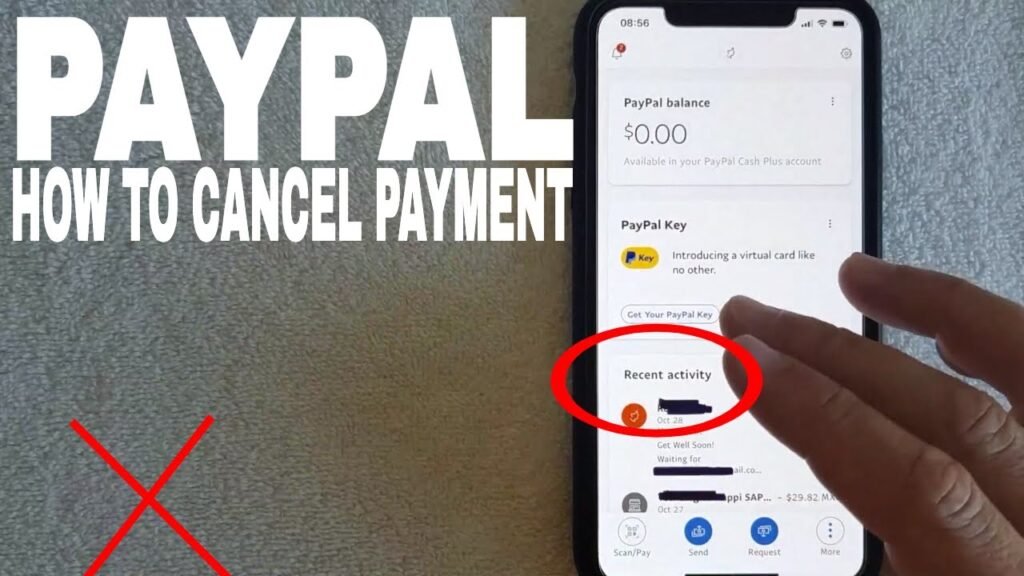
How to Cancel a PayPal Payment
You can cancel a PayPal payment when PayPal still gives you a cancellation option on the transaction. The quickest way to check is to open your PayPal Activity and look at the payment status.
Follow These Steps
- Sign in to your PayPal account and open Activity.
- Find the payment you want to cancel and open its details.
- Look for the Cancel option and select it if PayPal provides one.
- Follow the on-screen instructions to confirm the cancellation.
After you cancel the payment, return to your Activity page and check the transaction status. PayPal should update the payment information to show that you canceled it.
Why You May Not See the Cancel Option
PayPal only shows the cancellation option when the payment meets its cancellation requirements. If the recipient has already accepted the payment or PayPal has completed the transaction, the Cancel button may not appear.
You may also see different options depending on the type of payment you sent. For example, a payment for a purchase can have different support options from a personal payment.
Before You Cancel, Make Sure You Check
- Make sure you selected the correct payment. Check the recipient’s name and payment amount before canceling.
- Make sure you check the payment status. A pending or unclaimed payment may give you a cancellation option, while a completed payment usually does not.
- Make sure you understand what happens next. A successful cancellation stops that payment, but it does not automatically solve every issue with a purchase or order.
- Make sure you check your Activity afterward. Confirm that PayPal updated the transaction after you canceled it.
If PayPal does not show a Cancel button, don’t keep trying to cancel the payment through unrelated account settings. Move to the next available option, such as contacting the recipient or checking PayPal’s support options.
Cancel a Pending PayPal Payment
You may be able to cancel a pending PayPal payment if the transaction still shows a Cancel option in your account. Pending payments often mean PayPal has not completed the transaction yet, so checking the payment status early can give you the best chance of stopping it.
How to Check a Pending Payment
Open your PayPal account and go to Activity. Find the payment marked as Pending and open the transaction details.
If PayPal allows you to cancel that payment, you should see a Cancel option. Select it and follow the instructions PayPal provides to complete the cancellation.
What Happens After You Cancel?
After you cancel a pending payment, PayPal should update the transaction status. The money may return to your PayPal balance or the original payment method, depending on how you funded the transaction and how PayPal processes the cancellation.
Don’t worry if the money does not appear immediately. Some payment methods can take additional time to show the returned amount.
Why Might a Pending Payment Stay Pending?
A payment can remain pending for different reasons. For example, the recipient may not have accepted or claimed the payment yet, or PayPal may still need to complete part of the transaction.
If you don’t see a Cancel button, check the transaction details carefully. PayPal may no longer allow you to cancel that specific payment, even though the status still says pending.
Quick tip: If you realize you made a payment by mistake, check your PayPal Activity as soon as possible. The sooner you review the transaction, the sooner you can find out whether PayPal gives you a cancellation option.
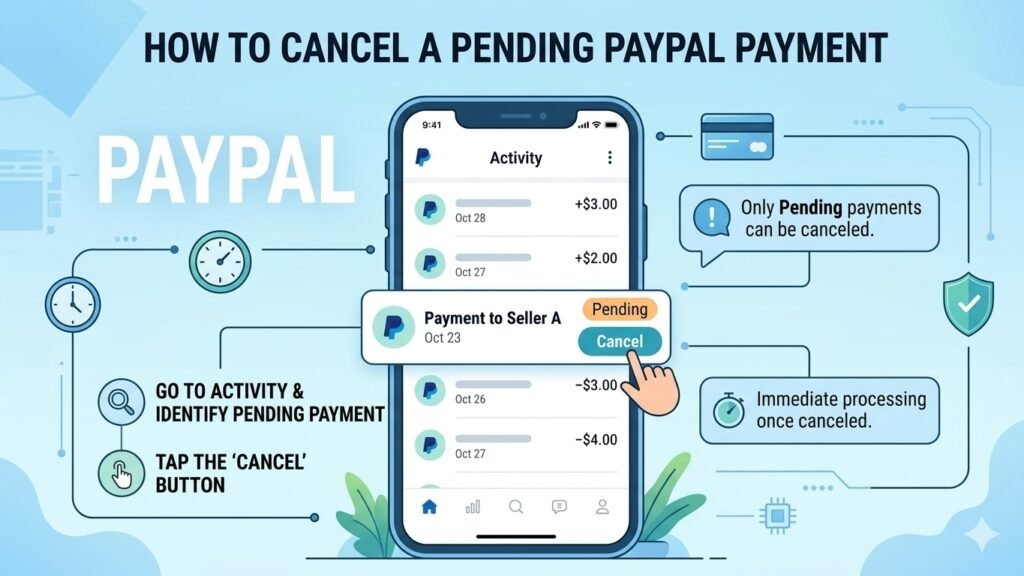
What If Your PayPal Payment Has Already Been Completed?
You usually cannot cancel a completed PayPal payment directly, but you may still have options to get the money back. Once PayPal marks a payment as completed, the transaction has already gone through, so you need to choose the option that matches your situation.
If You Sent the Payment to the Wrong Person
If you accidentally sent money to the wrong PayPal account, contact the recipient as soon as possible. Explain the mistake and ask them to return the payment.
If the recipient agrees, they can send the money back to your PayPal account. This approach can work faster than opening a dispute when the recipient is someone you know or can easily contact.
If You Paid for an Item or Service
If you paid a seller for a product or service and the problem involves the purchase, contact the seller first. Explain why you want to cancel the transaction or receive your money back.
If the seller does not respond or refuses to help, check whether the transaction qualifies for PayPal’s dispute or buyer protection process. Open the payment in your PayPal account and review the available help options.
If You Don’t Recognize the Payment
If you see a completed payment that you did not make, treat it differently from an ordinary cancellation request. Check your PayPal account activity and report the transaction through PayPal’s security or support options as soon as possible.
Also review your account security and make sure nobody else has access to your PayPal account.
Keep Your Payment Information
Before you contact the recipient or PayPal, save the important details about the transaction:
- Payment amount: Note the exact amount PayPal charged.
- Transaction date: Check when you sent the payment.
- Recipient: Confirm the name or email address connected to the payment.
- Transaction ID: Keep the transaction ID available if PayPal asks for it.
These details can help you explain the problem clearly and make the support process easier.
Remember the Difference
A canceled payment and a refunded payment are not the same thing. A cancellation stops an eligible payment before it completes, while a refund returns money after a payment has already gone through.
So, if you searched for how to cancel a PayPal payment that is completed, don’t look for a hidden Cancel button. Instead, check whether you can request a refund, contact the recipient, or ask PayPal to review the transaction.
Can You Cancel a PayPal Payment Sent to Friends and Family?
You usually cannot cancel a Friends and Family payment once PayPal marks it as completed. If the payment remains pending and PayPal shows a cancellation option, you may still be able to stop it.
If the Payment Is Still Pending
Check your PayPal Activity and open the Friends and Family payment. If PayPal shows a Cancel option, you can select it and follow the instructions.
Once PayPal confirms the cancellation, check the transaction again to make sure the status has changed.
If the Payment Is Already Completed
A completed Friends and Family payment works differently. PayPal normally does not provide a direct cancellation button after the transaction finishes.
If you sent the money to someone you know by mistake, contact that person and ask them to send the money back. Give them the payment amount and explain why you need the money returned.
What If You Sent It to the Wrong Person?
Act quickly. Check the recipient’s details in your PayPal Activity and contact them as soon as possible.
If you cannot reach the recipient, review the transaction’s available Help options in PayPal. Keep in mind that personal Friends and Family payments generally have different protection and dispute options than payments for goods or services.
Before Sending Another Payment
If you canceled or recovered a payment because you entered the wrong recipient, double-check these details before sending money again:
- Recipient’s email or phone number
- Payment amount
- Payment type
- Currency
- Payment note
Taking a few seconds to review the details can help you avoid sending another payment to the wrong person.
How to Cancel a PayPal Payment on the App
You can check whether a PayPal payment is cancelable from the PayPal app by opening the transaction and looking for a Cancel option. The app may show different options depending on the payment status.
Cancel a Payment From the PayPal App
- Open the PayPal app and sign in to your account.
- Tap Activity and select the payment you want to cancel.
- Check the payment details for a Cancel option.
- If PayPal provides the option, follow the prompts to confirm the cancellation.
Afterward, open the transaction again and check its status. This helps you confirm that PayPal processed your cancellation request.
What If You Don’t See a Cancel Option?
Don’t worry if the app does not show a Cancel button. This usually means PayPal does not allow you to cancel that particular payment through the app.
The payment may already have a completed status, or the transaction type may not support direct cancellation. In that case, open the transaction details and look for the available Help or support options.
If you paid a seller, you may need to contact the seller and ask for a refund. For an unauthorized payment, use PayPal’s security or support process instead.
Make Sure You Check the Payment Status
Before taking any further action, look at the status shown in the transaction:
- Pending: You may still have a cancellation option.
- Completed: You usually need a refund or another support option.
- Refunded: PayPal has already returned the payment.
- Canceled: The payment has already been stopped.
The exact buttons and menu names can change as PayPal updates its app, so focus on the payment status and the options PayPal displays for your specific transaction.
What Happens After You Cancel a PayPal Payment?
After you successfully cancel an eligible PayPal payment, PayPal stops that transaction and the money should return according to the payment method you used. The exact timing can vary, so don’t worry if the amount does not appear immediately.
Your Payment Status Should Change
Once PayPal processes the cancellation, check the transaction again in Activity. The status should show that the payment is no longer active.
If the payment still shows as pending after you tried to cancel it, give PayPal some time to update the transaction. You can check again later to confirm the final status.
When Will You Get the Money Back?
The return time depends on how you originally paid.
For example, money may return to your PayPal balance quickly, while a card or bank payment can take longer to appear in your account. Your bank or card provider may also need additional time to process the returned amount.
Don’t Send the Payment Again Immediately
If you canceled a payment because of a mistake, wait until you confirm that the first transaction has actually stopped. Sending another payment too quickly could result in two payments if the original cancellation has not finished.
Check your PayPal Activity and confirm the first payment’s status before trying again.
Keep a Record of the Cancellation
Save the transaction details if the payment involves a large amount or an important purchase. You may need those details if the payment status does not update or the money does not return as expected.
Quick check after cancellation:
- Check the payment status in PayPal Activity.
- Confirm that the original payment no longer remains active.
- Check your PayPal balance or original payment method for the returned amount.
- Contact PayPal Support if the cancellation or returned payment does not appear correctly.
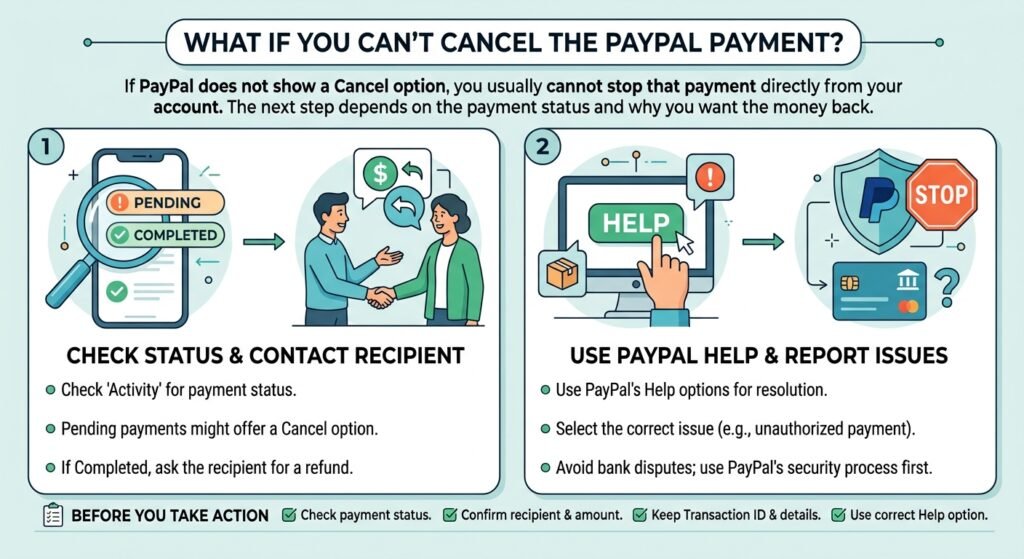
What If You Can’t Cancel the PayPal Payment?
If PayPal does not show a Cancel option, you usually cannot stop that payment directly from your account. The next step depends on the payment status and why you want the money back.
Check the Payment Status Again
Open Activity in PayPal and select the payment. Check whether it says Pending, Completed, Refunded, or another status.
A completed payment usually needs a refund request or another support option rather than direct cancellation. A pending payment may still have a Cancel option, but PayPal does not offer cancellation for every pending transaction.
Contact the Recipient
If you sent the payment to the wrong person or changed your mind about a purchase, contact the recipient first. Ask them to return the money if they can.
For a purchase, explain the issue to the seller and ask whether they can issue a refund. This can often provide a quicker solution than trying to cancel a completed payment.
Use PayPal’s Help Options
If you cannot resolve the issue with the recipient, open the transaction in PayPal and check the available Help or support options.
Choose the option that best matches your problem. For example, an unauthorized payment needs a different approach from a payment for an item that you never received.
Avoid Unnecessary Bank Disputes
Don’t immediately ask your bank to reverse a PayPal payment simply because PayPal does not show a Cancel button. Start with PayPal’s own support process so you can see what options apply to the transaction.
If you believe the payment was unauthorized or fraudulent, report it through the proper PayPal security process as soon as possible.
Before You Take Action
Make sure you:
- Check the payment status before trying another solution.
- Confirm the recipient and payment amount.
- Keep the transaction ID and payment details.
- Use the correct PayPal Help option for your situation.
If you were searching for how to cancel a PayPal payment and cannot find the button, the missing option usually means PayPal no longer allows direct cancellation for that transaction. In that case, focus on getting a refund or asking PayPal to review the payment.
If you cannot find a cancellation option, check PayPal’s official instructions for canceling a PayPal payment to see which options are available for your transaction.
Can You Get a Refund After Canceling a PayPal Payment?
Yes, you may get your money back, but a canceled payment and a refund are not the same thing. If PayPal successfully cancels an eligible payment, the money should return based on the payment method you used. If the payment already completed, you may need to request a refund instead.
If PayPal Canceled the Payment
When PayPal cancels a pending or unclaimed payment, the money should return to your PayPal balance or the original payment method.
The return time can vary. A PayPal balance may update sooner, while a card or bank account can take additional time to show the money.
If the Payment Was Already Completed
A completed payment usually needs a separate refund. If you paid a seller, contact them and explain why you want your money back. The seller may be able to issue a refund through PayPal.
If the seller does not help, open the transaction in your PayPal account and check the available Help options. Depending on the payment and the problem, PayPal may offer a dispute or other way to request a review.
What If You Were Charged Incorrectly?
If you believe PayPal processed the payment incorrectly, check your transaction details before requesting help. Make sure the amount, recipient, and payment date match your records.
Then use PayPal’s support options to explain what happened. Include the transaction details so PayPal can review the payment more easily.
Remember: canceling an eligible pending payment can stop the transaction, while a refund returns money from a payment that has already gone through.
If you’re also trying to get money back from a canceled booking, see our guide on How to Cancel Hotel Bookings and Get Your Money Back for more information about cancellations and refunds.
Frequently Asked Questions About Canceling a PayPal Payment
Can you cancel a PayPal payment after sending it?
Yes, but only in certain situations. If the payment is still pending or unclaimed and PayPal shows a Cancel option, you may be able to stop it. A completed payment usually needs a refund or another support option.
How do I cancel a PayPal payment that is pending?
Open PayPal, go to Activity, select the pending payment, and look for the Cancel option. If PayPal provides it, follow the instructions to complete the cancellation.
Can I cancel a completed PayPal payment?
Usually, no. Once PayPal marks a payment as completed, you normally cannot cancel it directly. Contact the recipient for a refund or check PayPal’s available support options.
Can I cancel a PayPal payment sent to Friends and Family?
You may cancel it if the payment remains pending and PayPal gives you a cancellation option. If the Friends and Family payment has already completed, contact the recipient and ask them to return the money.
Can I cancel a PayPal payment on the app?
Yes, you can check your payment from the PayPal app. Open Activity, select the transaction, and look for the available cancellation option. PayPal may not show this option for every payment.
What happens when you cancel a PayPal payment?
PayPal stops the eligible transaction and returns the money according to the payment method. The exact time can vary depending on whether you paid with your PayPal balance, bank account, or card.
What if PayPal does not show a Cancel button?
A missing Cancel button usually means PayPal does not allow direct cancellation for that transaction. Check the payment status, contact the recipient if appropriate, or use PayPal’s Help options.
Can someone cancel a PayPal payment sent to me?
The sender may be able to cancel a payment if it remains pending and PayPal provides a cancellation option. Once PayPal completes the payment, the sender normally cannot cancel it directly.
Can my bank cancel a PayPal payment?
Your bank may have its own processes for certain payment problems, but you should normally start with PayPal when the transaction went through PayPal. Check the payment details and use PayPal’s support options before contacting your bank.
Conclusion
Canceling a PayPal payment depends mainly on its current status. If the payment is still pending or unclaimed and PayPal shows a Cancel option, you may be able to stop it directly from your account.
If the payment already shows as completed, you usually cannot cancel it. Instead, contact the recipient and ask for a refund, or use PayPal’s Help and dispute options when they apply.
Before taking any action, check the payment details and status in your PayPal Activity. This helps you choose the right option and avoid sending another payment before the first transaction is fully resolved.