Introduction
Grammarly has become one of the most popular writing tools around. Students use it for essays and research papers. Professionals rely on it for emails, reports, and client messages. Bloggers and freelance writers use it to catch mistakes before hitting publish. Even casual users lean on it for quick texts and social posts that need to sound polished.
How Most People Start With Grammarly
Most people begin with the free version out of simple curiosity. It catches basic spelling and grammar mistakes without asking for a card number. Once users see the extra suggestions locked behind Premium, many decide to upgrade. Tone detection, clarity rewrites, and the plagiarism checker are the features that usually push people toward paying.
Why People Eventually Cancel
Plans change over time. A course might end. A job might no longer require heavy writing. A cheaper tool might do enough for someone’s current needs. Some people just want to stop paying for something they rarely open anymore. Whatever the reason, this guide walks you through how to cancel Grammarly subscription in 2026, using the method that matches how you originally signed up.
What This Guide Covers
This guide starts with the main cancellation method on Grammarly’s own website, since most users sign up there first. It then breaks down separate steps for iPhone, Google Play, and the mobile app. Each of these bills you differently behind the scenes, so the right method depends entirely on how you originally paid.
You’ll also learn what happens to your account right after cancelling. Refunds get their own detailed section, since the rules shift depending on where you subscribed. There’s guidance for people who simply forgot to cancel in time. And there’s a full breakdown for anyone who cancels but keeps getting charged anyway.
Why Every Method Gets Its Own Section
A lot of cancellation guides only cover one method, usually the website. That approach works fine for people who signed up directly on Grammarly’s site. It falls apart completely for anyone who subscribed through the App Store or Google Play, since a different company handles the billing in those cases. This guide avoids that gap by giving each signup path its own dedicated walkthrough.
What to Gather Before You Start
Grab your Grammarly login details first. Pull up your most recent billing statement or bank transaction too, so you know exactly what you’re paying and when your next charge lands. Not sure whether Apple, Google, or Grammarly directly is charging you? The sections below will help you figure that out in under a minute.
How to Cancel Grammarly Subscription
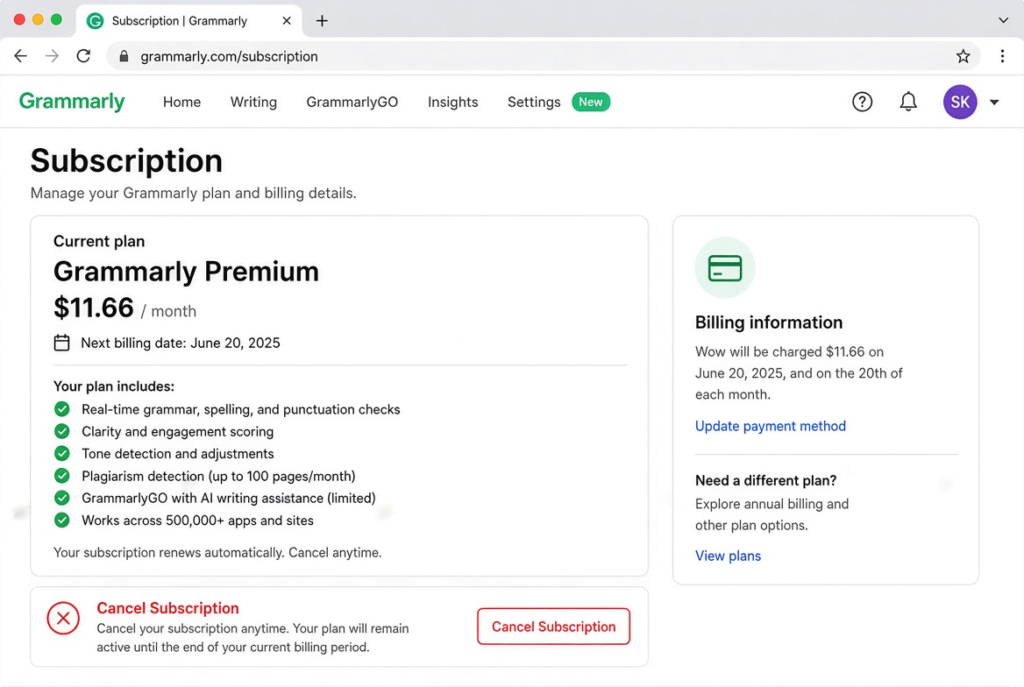
Cancelling through your Grammarly account is the most direct way to stop future charges. It works whether you’re on Grammarly Premium, Grammarly Business, or one of the writing add-ons sold through Grammarly’s own site. The cancel button exists — it just doesn’t sit where most people expect it to be.
Step-by-Step: Cancelling Through Your Account
Step 1: Log in. Go to account.grammarly.com and sign in with your email and password. Browser extension users still need this separate account page to cancel, since the extension itself has no cancellation option built in.
Step 2: Open the Subscription page. Click “Account” in the left sidebar once you’re logged in. Then click “Subscription.” This page shows your current plan, next billing date, and payment method on file.
Step 3: Scroll to the bottom. Most people miss this step, and it’s genuinely not their fault. Unlike many other sites, Grammarly doesn’t place “Cancel Subscription” near the top with your plan details. Instead, it sits at the very bottom of the page, below several paragraphs about your plan and features.
Step 4: Click Cancel Subscription. A pop-up window appears right away, asking you to confirm.
Step 5: Click “Yes, continue.” This confirms you specifically want to cancel rather than pause or downgrade. Grammarly doesn’t currently offer a true pause option, but this screen still exists as a final check.
Step 6: Pick a reason. Choose whichever option feels closest to your situation from the short list provided. This step doesn’t change or delay the cancellation in any way.
Step 7: Confirm once more. A final “Cancel Subscription” button appears after you choose a reason. Click it to submit the request.
Step 8: Save your confirmation. You should see an on-screen message confirming success, and Grammarly typically sends a confirmation email shortly after. Keep that email somewhere safe — it becomes useful proof if a charge appears later that shouldn’t be there.
Why the Button Placement Trips People Up
Most subscription services place their cancel option somewhere obvious, often right next to the plan name or billing date. Grammarly’s layout buries it further down the page instead. This isn’t necessarily a trick, but it does mean a lot of people give up halfway through, assuming there’s no cancel option at all, then contact support unnecessarily.
What Happens Immediately vs. Later
Cancelling stops your subscription from renewing, but it doesn’t remove your paid access right away. Premium features stay available through the end of the period you’ve already paid for. Only after that period ends does your account switch over to the free version automatically.
If you’re cleaning up other subscriptions at the same time, our guide on how to cancel a subscription and keep access until it expires covers this exact pattern in more detail, since it applies to most subscription services, not just Grammarly.
Double-Checking the Cancellation Actually Worked
Log back into your account a day later and check the Subscription page again. It should now show a cancellation date instead of a renewal date. If it still shows an active renewal, something went wrong during the process, and it’s worth trying again or reaching out to support directly.
How to Cancel Grammarly Subscription on iPhone
Subscribed through the App Store instead of Grammarly’s website? This section matters for you specifically. Cancelling through Grammarly’s account page won’t stop the charge here, because Apple is the one billing your card, not Grammarly.
Checking Where You’re Actually Being Billed
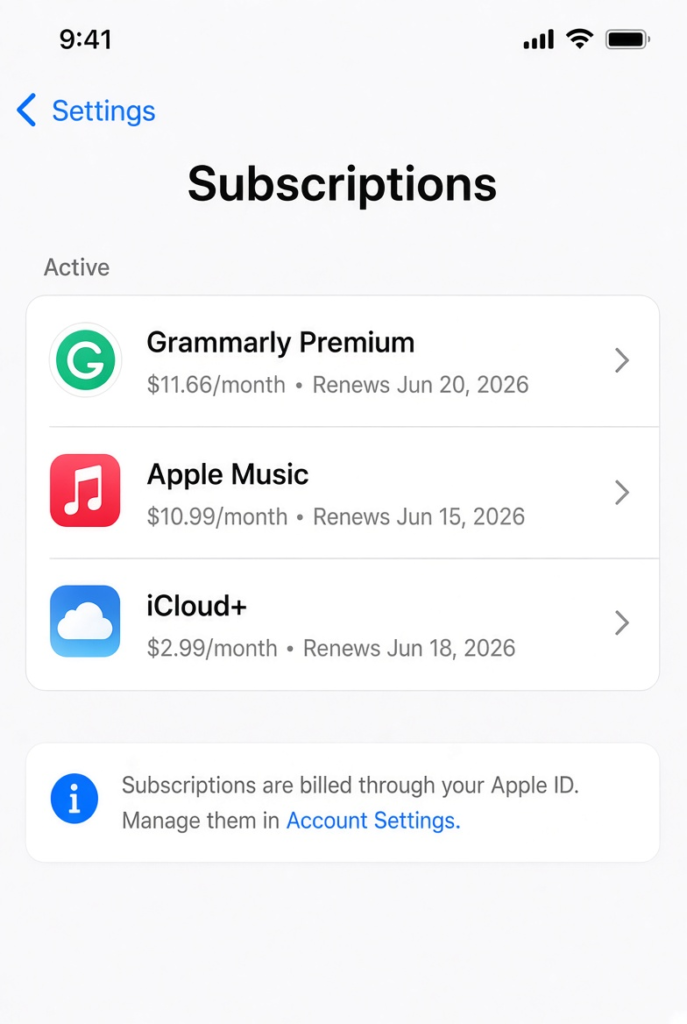
Open Settings on your iPhone. Tap your name at the top, then tap “Subscriptions.” This shows every subscription Apple currently bills you for. Look through that list for Grammarly.
If Grammarly Appears in the List
Tap on it, then tap “Cancel Subscription.” Apple asks you to confirm one more time before finalizing. Once confirmed, Premium access continues through the rest of your current billing period. It simply won’t renew after that date passes.
If Grammarly Doesn’t Appear
Your account was likely set up directly through Grammarly’s website rather than through Apple. Go back to the main “How to Cancel Grammarly Subscription” steps above and cancel through account.grammarly.com instead, since Apple has no billing record for a subscription it never processed.
A Mistake Worth Avoiding
Some iPhone users cancel through Grammarly’s website, see a confirmation, and assume they’re finished. Weeks later, they notice Apple charged them right on schedule anyway. This happens when the subscription was actually set up through the App Store the entire time — the website cancellation never touched that separate billing relationship. Checking your Subscriptions list first saves you this exact headache.
What If You Switched Devices Recently
Switching from Android to iPhone, or getting a new phone in general, doesn’t move your subscription automatically between billing systems. Your Grammarly account stays tied to whichever payment method originally set it up, regardless of which phone you’re currently using. Always check the original signup method rather than assuming your current device controls the billing.
Apple has its own official page with more detail on managing App Store subscriptions, worth a look if your billing method is still unclear: Apple’s subscription support page.
How to Cancel Grammarly Subscription on Google Play
The same logic applies here as with Apple. Subscribed through the Google Play Store on an Android phone? Google is charging your card, not Grammarly directly. Cancelling on Grammarly’s website alone won’t stop that charge.
Finding Your Subscription in Google Play
Open the Google Play Store app. Tap your profile icon in the top right corner, then tap “Payments & subscriptions,” followed by “Subscriptions.” A full list of every active subscription tied to your Google account appears.
Cancelling the Subscription
Find Grammarly in that list and tap on it. A “Cancel subscription” button appears clearly on that screen. Tap it, then follow the confirmation prompts. Access continues normally until the end of your paid period, just like with Apple’s system.
If Grammarly Isn’t Listed
Your subscription is most likely tied to Grammarly’s own website instead. Head back to your Grammarly account page and cancel from there, following the main steps covered earlier.
Family Accounts and Shared Google Accounts
If a family member manages a shared Google account that includes your Grammarly subscription, only the account holder who made the original purchase can typically cancel it through Google Play. Check with whoever set up the account if the subscription doesn’t appear under your own profile.
Confirming Which Billing Method Applies to You
Still unsure? Check your bank or card statement directly. A charge labeled “Google” usually means Google Play handled the billing. A charge labeled “Grammarly” directly means their own payment system charged your card, meaning you’ll need to cancel through their website.
How to Cancel Grammarly Subscription on the App
Grammarly’s mobile app mostly mirrors the website, though the exact layout can shift slightly depending on your phone model and app version.
Opening Account Settings Within the App
Open the Grammarly app and sign in. Look for a menu icon, usually tucked into a corner of the screen, and tap into it. Find “Account” or “Settings,” then tap through to your subscription details.
What Typically Happens Next
The app often redirects you to your account page inside a browser window rather than completing everything in-app. Sometimes it tells you to manage your subscription through the App Store or Google Play, depending on how you originally signed up. This pattern is common with app-based subscriptions generally — the app can show your plan status easily enough, but the actual cancellation sometimes happens somewhere else entirely.
Treat a Redirect as Normal, Not a Problem
A redirect doesn’t mean something went wrong. Simply follow it and complete the cancellation through whichever method it points toward — the website, Apple’s Subscriptions settings, or Google Play, all covered in detail above.
Keeping the App After You Cancel
You don’t need to delete the Grammarly app just because you cancelled Premium. The free version keeps working through the app normally, including basic spelling and grammar checks. Deleting the app has no effect on your billing either way, so it’s purely a matter of personal preference.
What Happens When You Cancel Grammarly Subscription?
Once your cancellation goes through, here’s exactly what to expect.
Premium Features Stay Active For Now
Full access to tone detection, the plagiarism checker, and every advanced suggestion continues right up until your current billing period ends. Grammarly doesn’t cut you off the moment you click cancel, since that time has already been paid for.
Your Account Switches to the Free Version
Your account doesn’t disappear once the paid period ends. It drops down automatically to Grammarly’s standard free tier. Basic grammar and spelling checks keep working exactly as before, just without the premium extras.
Documents and Writing History Stay Put
Everything you’ve written or edited inside Grammarly remains saved and accessible. Cancelling Premium doesn’t touch your existing documents in any way.
Advanced Features Become Unavailable
The plagiarism checker and advanced tone suggestions disappear once you’re on the free plan. Upgrading again later restores access to those same features whenever you’re ready.
Team and Business Accounts Work Differently
If you’re on a Grammarly Business plan managed by an organization, cancellation usually needs to go through the account administrator rather than your individual login. Check with whoever manages your team’s Grammarly account if you don’t see a personal cancellation option available to you.
How to Cancel Grammarly Subscription and Get a Refund
Grammarly’s refund policy is fairly strict by default, but a few specific situations give you a real shot at getting money back.
Cancelling Right After a Charge
Some users successfully request refunds shortly after an unexpected renewal charge, especially when they contact support quickly and explain the situation clearly.
Subscribed Through Apple
App Store purchases go through Apple’s own refund system rather than Grammarly directly. Request a refund at reportaproblem.apple.com, selecting the Grammarly charge and briefly explaining why you’re asking for one.
Subscribed Through Google Play
Purchases made through Google Play need to go through Google’s support system instead. Contact them directly and reference the exact charge, including its date and amount.
Charged After Already Cancelling
This is the strongest possible case for a refund. If your account clearly shows as cancelled but you were still billed, contact Grammarly support, explain the dates involved, and ask plainly for both an explanation and a refund.
How Long Refund Requests Typically Take
Most refund decisions come back within a few business days once support has all the relevant details. Apple and Google tend to process their own refund requests a little faster than waiting on email replies from Grammarly’s support team directly.
What Usually Doesn’t Qualify
Grammarly generally won’t refund a charge just because you barely used the service or forgot you had it running. Documented billing mistakes get results far more often than simple buyer’s remorse.
What If You Forgot to Cancel Grammarly Subscription?
This happens more often than people expect, and it’s nothing to feel embarrassed about. A free trial or short-term need turns into a quiet renewal that goes unnoticed until a bank statement reveals it weeks later.
First Steps to Take
Log in to your Grammarly account and check the Subscription page to confirm exactly what you’re being charged for. Cancel using the steps in the main section above so another charge doesn’t hit next cycle.
Deciding Whether to Ask for a Refund
Consider requesting a refund on the most recent charge if it’s only been a few days since the renewal. Contact support and explain honestly that you forgot to cancel in time. Some users get at least a partial refund this way, though it’s never guaranteed.
Checking How Many Times You Were Charged
Before contacting support, scroll back through a few months of statements. Some people discover they’ve been charged multiple times without noticing, not just once. Having the full list ready makes any refund conversation faster and clearer.
Preventing This From Happening Again
Setting a reminder a few days before your renewal date helps enormously. A calendar note, a phone alert, or even a sticky note can prevent this exact situation from repeating itself.
What If You Can’t Cancel Grammarly Subscription?
Sometimes the cancel button doesn’t work as expected. The page might not load properly, or clicking “Cancel Subscription” might not seem to do anything at all.
Try a Different Browser
Switching browsers often solves the problem immediately. Grammarly’s cancellation flow occasionally runs into issues with certain browser extensions or outdated versions.
Clear Your Browser Cache
If switching browsers isn’t convenient, clearing your current browser’s cache and cookies can also resolve loading issues on the Subscription page. Old cached data sometimes interferes with how the page displays or responds to clicks.
Contact Support and Be Specific
Reach out to Grammarly’s help center directly if switching browsers doesn’t help. State clearly that you want to cancel entirely, not pause or downgrade. Ask for written confirmation once it’s done.
A Backup Plan If Support Is Slow
Contacting your bank to block future charges from Grammarly is a reasonable interim step if support doesn’t respond quickly enough and a renewal is approaching. This doesn’t officially cancel your account on Grammarly’s end, but it stops money from leaving your account while things get sorted out.
Why Is Grammarly Still Charging Me After Cancellation?
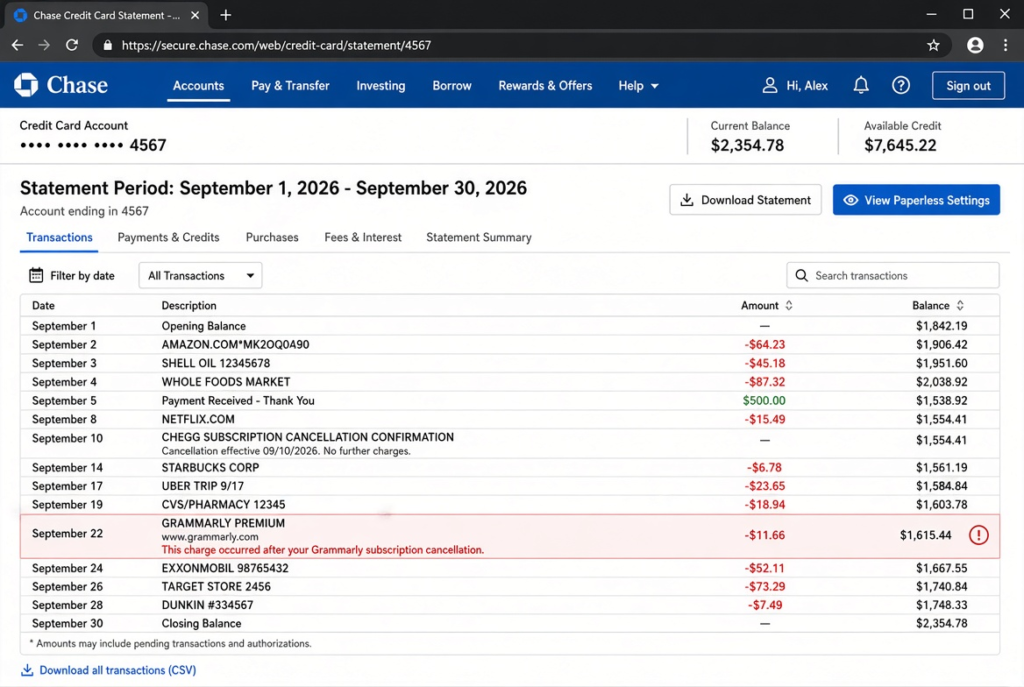
A few different things could be happening if you’ve cancelled but still see a charge.
Check Your Account Status First
Log in and look at the Subscription page. Does it say cancelled, or does it still show active? This single check reveals a lot right away.
Cancelled, But Still Charged
The charge likely happened just before your cancellation processed, or it’s a billing error on Grammarly’s end. Contact support with the exact date you cancelled and ask them to review it.
Still Shows as Active
Your original request likely didn’t fully complete, even if it seemed to at the time. Closing the browser too early or a dropped connection can interrupt the process. Go through cancellation again, and this time wait for the final confirmation screen before closing anything.
Subscribed Through Apple or Google Play
Cancelling through Grammarly’s website does nothing for these charges. Check your iPhone’s Subscriptions list or your Google Play subscriptions instead, exactly as covered earlier.
Keeping Records for Repeated Issues
If this happens more than once, keep a simple log of every date you contacted support, along with what they told you each time. A clear record makes it much easier to escalate the issue if a single conversation doesn’t resolve it.
This same pattern shows up across many subscription services, not just Grammarly. Our guide on why services keep charging after cancellation walks through a similar situation with Chegg, including how the FTC has started cracking down on this exact problem industry-wide.
How Long Does It Take to Cancel Grammarly Subscription?
Cancellation itself is usually processed instantly once you click through Grammarly’s confirmation screens. An on-screen message appears right away, followed by a confirmation email within a few minutes.
Processing Speed vs. Access Timing
Being cancelled instantly doesn’t mean Premium access ends that same moment. Access continues through the end of the billing period already paid for — anywhere from a few days to nearly a month, depending on where you are in your cycle.
Support-Assisted Cancellations May Take Longer
Cancelling through a support conversation rather than the self-service page can add a short delay. A representative usually has to manually update your account, which sometimes takes a few extra hours compared to the instant online process.
When to Follow Up
Follow up directly with support if more than a day or two passes without a confirmation email or any visible change in account status.
Frequently Asked Questions About Canceling Grammarly Subscription
Can I Cancel Grammarly Subscription Anytime?
Yes. There’s no lock-in period. Cancelling at any point still leaves you with access through the end of your current billing cycle.
How Do I Cancel Grammarly Subscription From My Phone?
It depends on how you subscribed. App Store users cancel through iPhone Subscriptions settings. Google Play users cancel through the Play Store app. Website subscribers can simply log in through a mobile browser and cancel from their account page.
Will I Get a Refund After Canceling Grammarly?
Sometimes, though it’s not automatic. Refunds are more likely for clear billing errors or requests made shortly after signing up. Apple and Google Play purchases need their own refund systems rather than going through Grammarly directly.
What Happens to My Documents After Cancellation?
Nothing happens to them. Documents and writing history stay fully saved even after the subscription ends. Only Premium-only features like the plagiarism checker become unavailable.
Can I Switch Back to Premium Later?
Yes. Nothing about cancelling prevents you from upgrading again in the future. Your old documents and account settings remain in place, so switching back feels the same as it did the first time you upgraded.
Grammarly Free vs. Grammarly Premium: What You Actually Lose
Understanding exactly what you give up helps you decide if cancelling makes sense right now.
Features That Stay With the Free Plan
Basic spelling, grammar, and punctuation checks remain fully available on the free plan. You can still write, edit, and save documents without any restrictions on the writing itself. The core browser extension and desktop app both keep working normally.
Features That Disappear Without Premium
The plagiarism checker goes away entirely once you drop to the free tier. Advanced tone detection and clarity rewrites become unavailable too. Full-sentence rewrites, a feature many Premium users rely on heavily, also disappear.
Deciding If You Need to Resubscribe Later
Some users cancel, try the free version for a few weeks, and realize they genuinely miss specific Premium features. If that happens, resubscribing takes just a few minutes and restores full access immediately. There’s no waiting period or penalty for signing up again after cancelling.
Common Reasons People Cancel Grammarly Subscription
Knowing why others cancel can help you figure out if a cheaper alternative fits your situation better, or if keeping Grammarly still makes sense.
Finished a Specific Project or Course
Many students subscribe specifically for a thesis, dissertation, or a writing-heavy semester. Once that project wraps up, the need for Premium features often disappears along with it.
Switched to a Different Writing Tool
Some users move to built-in editing tools inside Google Docs or Microsoft Word, especially if those tools have improved enough to cover their basic needs. Others switch to competing grammar checkers that better fit a specific budget.
Budget Adjustments
Subscription fatigue is real. When people review their monthly recurring charges, writing tools are often one of the first things reconsidered, especially if usage has dropped significantly over the past few months.
Team or Employer Changes
People who had Grammarly Business through a previous job sometimes need to cancel a personal subscription once they realize their new employer provides a different tool, or none at all.
Tips for Avoiding Accidental Renewals in the Future
A few small habits make it much easier to stay in control of any subscription, not just Grammarly.
Review Your Subscriptions Every Few Months
Set a recurring reminder every three months to review every active subscription tied to your card. This catches services you forgot about before they renew again unexpectedly.
Use One Card for Subscriptions
Some people dedicate a single card exclusively to subscriptions. This makes it far easier to scan one statement and see everything being charged in one place, rather than searching through a card used for everyday purchases too.
Take Advantage of Renewal Reminder Emails
Grammarly typically sends a reminder email a few days before your subscription renews. Don’t ignore these emails if you’re on the fence about keeping the service. Acting on that reminder is much easier than requesting a refund afterward.
Conclusion
Cancelling Grammarly is simple once you know the button sits at the bottom of the Subscription page, not near the top. Figuring out which system is actually billing you tends to be the trickier part, since Apple, Google Play, and Grammarly’s own website each need a different cancellation path. Premium features stay available through your paid period no matter which method applies, and every document stays safe either way.
Don’t assume an unexpected charge after cancelling is a lost cause. Checking your account status, confirming your billing method, and reaching out to support with specific dates usually resolves things without much extra hassle.