

Introduction
Chegg has spent more than a decade building one of the largest platforms for homework help, textbook rentals, and writing assistance. For many students, it has made a tough semester more manageable.
But cancelling isn’t always easy. The Federal Trade Commission recently required Chegg to pay $7.5 million over this exact issue. The FTC found that Chegg made cancellation unnecessarily difficult and kept billing customers who had already asked to stop — nearly 200,000 of them, in some cases for months.
This guide walks you through every practical way to cancel Chegg subscription. That includes the standard in-account method, options if you can’t log in, mobile and app-specific steps, and an iPhone-specific breakdown for App Store subscribers. You’ll also learn what happens after you cancel, how refunds work, and what to do if Chegg keeps charging you anyway.
Before you start, gather a few things. Have your account email ready, along with your most recent billing statement. If you plan to call support, set aside extra time — Chegg’s process often includes a few extra steps before you reach the cancel button.
How to Cancel Chegg Subscription
Cancelling a Chegg subscription through your online account is the most direct method available. It applies whether your subscription is for Chegg Study, Chegg Writing, Chegg Math Solver, or one of the platform’s other standalone services.
The idea is the same across all of them: you have to deliberately seek out the cancellation link. Chegg doesn’t surface it as the most prominent option on the page — a design choice that was specifically called out in the FTC’s complaint against the company.
Step 1: Sign in to your account.
Open a browser on your computer or phone and go to chegg.com. Sign in using the email address and password associated with your subscription. If it’s been a while since you logged in and you can’t remember your password, use the “Forgot Password” link rather than trying to guess — this is usually faster than people expect and avoids the account-lockout issues that come from repeated failed login attempts.
Step 2: Navigate to My Account.
Once you’re logged in, look for your account icon or your name in the upper right corner of the page. Clicking it opens a dropdown menu with several options. Select “My Account” from that list.
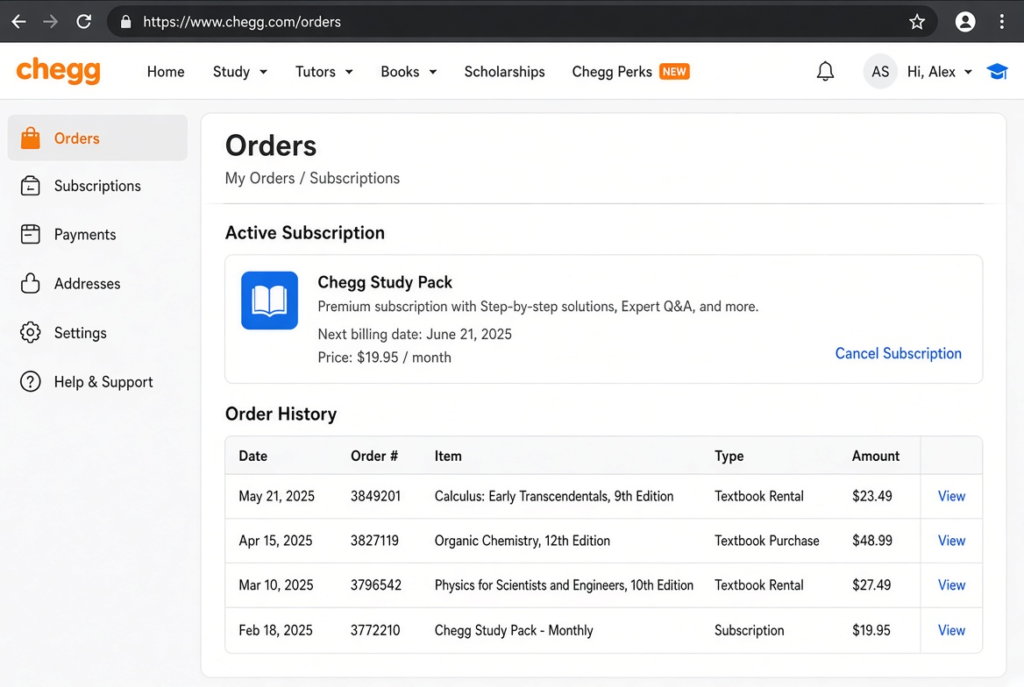
Step 3: Find the Orders tab, not “Billing.”
This is where a lot of people get stuck, because intuitively you’d expect a cancellation option to live under a tab labeled “Subscription” or “Billing.” Instead, Chegg tends to place it under a tab called “Orders.” Click into that tab and look for your currently active subscription listed among your order history.
Step 4: Locate the smaller “Cancel Subscription” link.
Next to your active subscription, you should see a less visually prominent link or button — often smaller and less colorful than the surrounding buttons — labeled “Cancel Subscription.” This is easy to miss on a first pass, especially on mobile, where the layout compresses everything into a tighter space.
Step 5: Get through the pause offer.
Clicking “Cancel Subscription” almost never cancels your account immediately. Instead, Chegg typically shows you a screen offering to pause your subscription for up to three months instead of cancelling outright. If pausing genuinely doesn’t work for you, look for a secondary, less prominent link — often phrased as “I’d rather cancel” or “Continue cancellation” — to keep moving forward toward the actual cancellation.
Step 6: Complete or skip the survey.
After declining the pause offer, you’ll likely be shown a short survey asking why you’re leaving. In most cases, this step is optional in the sense that skipping it doesn’t block the process, though Chegg’s interface doesn’t always make that clear, which has understandably confused plenty of subscribers into thinking they had to answer before they could proceed.
Step 7: Confirm the cancellation.
The final step is a confirmation button, usually styled in an orange or brightly colored box, labeled something like “Cancel Subscription” or “Confirm Cancellation.” Once you click it, the request should go through, and you’ll typically see an on-screen message confirming the cancellation.
Step 8: Save your confirmation email.
Chegg usually sends a confirmation email shortly after you complete the process. Save this email somewhere you won’t lose it — it becomes genuinely useful evidence if a charge shows up later that you believe shouldn’t have.
Given everything the FTC uncovered about Chegg’s historical cancellation flow, it’s worth treating every one of these steps as something to verify rather than assume. If any step behaves unexpectedly — a button doesn’t respond, the page reloads, or the service redirects you somewhere unrelated — don’t assume the cancellation went through. Start over, or move to phone support instead.
How to Cancel Chegg Subscription Without Logging In
Not everyone still has access to the email address or password tied to their old Chegg account. Maybe you set up the account years ago with an email you no longer use, maybe someone else signed you up, or maybe you simply don’t want to log back into a service you’re actively trying to leave behind. Whatever the reason, there are still a few realistic paths forward, though each one takes a bit more effort than the standard in-account method described above.
Contacting support directly is the most reliable option.
If you can’t access your Chegg account, contact Chegg’s customer support team. Explain that you want to cancel your subscription but can’t log in.
You can typically contact support through the help center chat, contact form, or phone. Available options may vary.
Be ready to verify your account ownership. Support may ask for the email address linked to your account. They may also ask for other account details to confirm your identity.
Once you provide enough information, a representative can usually process the cancellation for you. Your account remains in Chegg’s system even when you can’t log in.
Blocking the charge through your bank is a valid backup plan.
If you genuinely cannot verify account ownership, contacting your bank or card issuer becomes the next practical step. This may happen if you no longer have access to the original email or billing details.
You can ask them to block future Chegg charges. This stops recurring payments from your end, even if your Chegg account remains open.
This isn’t the same as an official cancellation. Chegg may still show the subscription as active. However, blocking the charges stops money from leaving your account while you work with Chegg support.
Don’t overlook the possibility that a password reset is simpler than avoiding login altogether.
Many people who think they can’t log in have simply forgotten their password. If you can still access the email linked to your account, use Chegg’s “Forgot Password” link. Resetting your password through email is usually faster than finding another way to avoid logging in . It’s worth trying this first before assuming you need one of the alternative routes above.
A note on shared or family accounts.
If a parent, sibling, or someone else set up your Chegg account, you may need their help. Their email may appear on the account. Chegg may use that information to verify account ownership.
How to Cancel Chegg Subscription on Phone
For people who’d rather talk to an actual person than click through a website, cancelling Chegg by phone is a legitimate option, and in some cases it’s the fastest route if the online flow isn’t cooperating.
Finding the right number.
You can find Chegg’s current support phone number on the official Chegg contact or help page. Avoid relying on an outdated blog post or forum thread, since support numbers can change. Search for “Chegg contact us” and go directly to Chegg’s official website. This is the safest way to find the correct, current number instead of using an outdated or third-party listing.
What to have ready before you dial.
Before calling, gather a few pieces of information so the call moves quickly:
- The email address linked to your Chegg account
- The last four digits of the card used for billing
- Your approximate signup date, even if it’s a rough estimate
- Which specific Chegg subscription you want to cancel, since the company offers several distinct services (Study, Writing, Math Solver, and others) that may be billed and tracked separately
Being direct during the call matters.
Tell the representative early that you want to cancel your subscription entirely. Make it clear that you don’t want to pause, downgrade, or switch to a cheaper plan. Representatives may offer alternatives first. This isn’t necessarily a bad-faith tactic, but it can slow the conversation if you don’t clearly state what you want.
Three things to confirm before hanging up.
Don’t end the call until you’ve gotten clear answers to the following:
- The exact date your access will end
- Whether you’ll be charged again before that date, and if so, how much
- Whether you’ll receive written confirmation by email once the cancellation is processed
Representatives sometimes describe a cancellation verbally without automatically sending anything in writing, and having a documented paper trail becomes important if a billing dispute comes up down the line.
Following up afterward. If you don’t receive a confirmation email within a day or two of the call, don’t assume everything is fine and move on. Follow up, either by calling back or checking your account status online. A missing confirmation email is one of the more common threads connecting people who find themselves still being charged weeks after they believed, in good faith, that their account had been closed.
How to Cancel Chegg Subscription on iPhone
If you originally subscribed to Chegg through Apple’s App Store rather than directly on Chegg’s own website, cancelling from within your Chegg account alone will not actually stop the charges — Apple, not Chegg, is the one billing you in that scenario, and the two systems don’t automatically sync with each other.
Checking how you’re actually being billed.
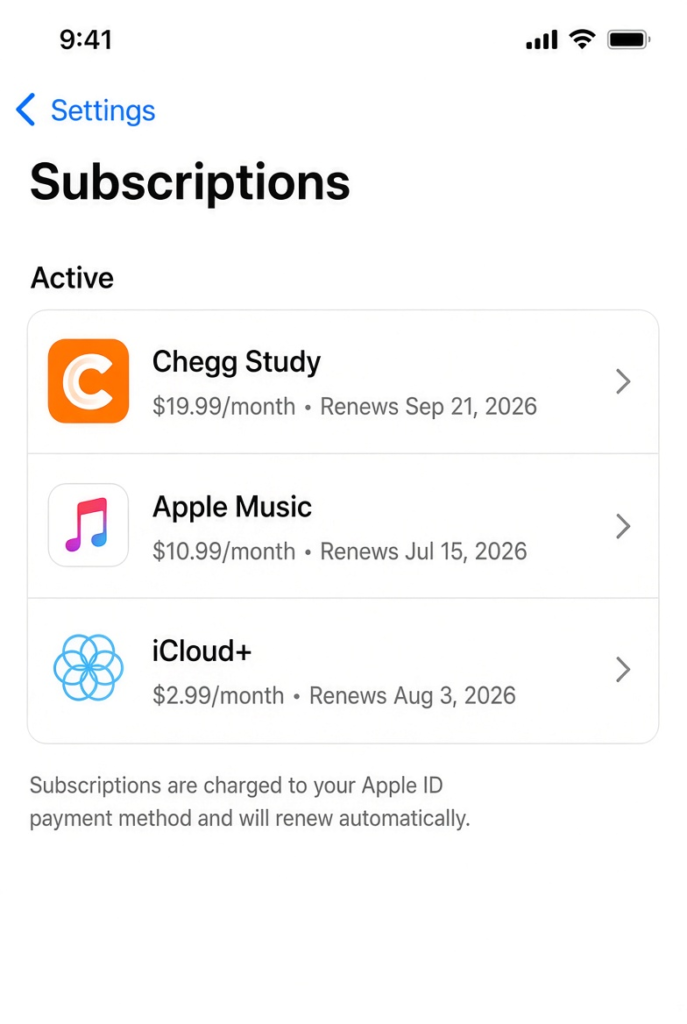
Before doing anything else, open the Settings app on your iPhone, tap your name at the very top of the screen, and then tap “Subscriptions.” This brings up a list of every subscription Apple is currently billing you for. If Chegg appears in that list, your subscription is being managed and billed through Apple, which changes the correct cancellation path.
Cancelling through Apple’s Subscriptions menu.
If Chegg does show up under your iPhone’s Subscriptions list, tap on it, then tap “Cancel Subscription” from that screen. Apple will ask you to confirm the cancellation. Once confirmed, your subscription remains active through the end of the current billing period you’ve already paid for, and it simply won’t renew after that date — Apple doesn’t issue an immediate cutoff the moment you cancel.
If Chegg doesn’t appear in your Subscriptions list.
In that case, your account was likely set up directly through Chegg’s website. You probably used a debit or credit card for payment. Cancelling this type of subscription requires Chegg’s account portal. You can follow the process covered earlier in the “How to Cancel Chegg Subscription” section. You don’t need to use your iPhone’s settings. Apple has no billing record for a subscription it never processed.
A mistake worth specifically avoiding.
Some iPhone users cancel through Chegg’s website and see a confirmation. They assume everything is handled, only to discover weeks later that Apple charged them. In these cases, the website cancellation never affected their Apple subscription. Check your iPhone’s Subscriptions list first. This helps you cancel the correct subscription and avoid unexpected charges.
If you’re unsure which billing method applies to you.
Look at your bank or card statement directly.A charge listed as “Apple” or “iTunes” usually means the App Store handles your billing. A charge listed as “Chegg” means Chegg charges your card directly. This distinction helps you identify which service manages your subscription.
How to Cancel Chegg Subscription on the App
Chegg’s mobile app generally offers many of the same features as the desktop website. However, the menu layout, wording, and button placement may differ between iOS and Android. App updates can also change these details.
Opening the app and finding your account settings.
Open the Chegg app and sign in if you aren’t already logged in. Look for a profile icon or a menu icon, usually tucked into a corner of the screen, and tap into an option labeled “Account” or “Settings,” depending on the version of the app you’re using.
Locating the subscription and cancellation option.
From your account settings, tap into your subscription details. You should find a cancellation option here, similar to the desktop site. Look under headings such as “Orders” or “Manage Subscription.” Chegg may not display the option as a standalone button on the main account screen.
What to do if the app doesn’t complete the cancellation.
In some cases, the app doesn’t offer a fully self-contained cancellation flow, which isn’t unusual for subscription-based apps generally. You may find that tapping “Cancel” redirects you either to Chegg’s mobile website in a browser window, or prompts you to contact support directly instead. This happens because Apple or Google handles some in-app purchases. The app can show your subscription status, but it may not let you cancel the subscription. You must cancel it through the platform that processed your payment.
The same verification rule applies here as everywhere else.
Regardless of which specific path the app sends you down — a full in-app cancellation, a redirect to the website, or a prompt to contact support — don’t consider your subscription cancelled until you actually have a confirmation message or email in hand. An app screen that simply stops showing your subscription isn’t the same as a documented, confirmed cancellation.
What Happens When You Cancel Chegg Subscription?
Once your cancellation request goes through, several things happen in sequence. Understanding this process helps you know what to expect.
Your access continues through the period you already paid for.
Chegg’s paid features usually remain available until the end of your current billing cycle. This includes homework help, expert Q&A, textbook solutions, and writing assistance. Chegg generally does not end access when you click “cancel.” You already paid for the remaining time in advance.
Your account reverts to a limited or free status rather than being deleted.
After your paid access period ends, your account doesn’t disappear entirely. Instead, it usually shifts to a free or limited-access tier. This means your account information, order history, and any saved study materials or notes generally remain accessible to you, just without the specific paid features attached to your former subscription.
Textbook rentals are a separate process entirely.
If you rented physical textbooks through Chegg alongside your subscription, cancelling the subscription itself does not automatically handle any outstanding textbook returns. Textbook rentals have separate return deadlines and shipping requirements. Check your order history for any books that still need returns. This step helps you fully close your Chegg account. Missing a rental return deadline can result in additional charges completely separate from your subscription billing.
Charges should stop going forward — assuming everything processed correctly
. From the point your cancellation is confirmed, you should stop seeing further charges. Given what the FTC’s investigation uncovered about Chegg’s historical cancellation practices, though, this isn’t something to simply assume will happen correctly on the first attempt — it’s worth actively checking your next billing statement to confirm no further charges appear.
How to Cancel Chegg Subscription and Get a Refund
Whether you’re entitled to a refund after cancelling depends heavily on the specific timing and circumstances surrounding your subscription, and it’s not a one-size-fits-all answer.
Cancelling shortly after being charged.
If you cancel soon after a charge posts, Chegg may offer a refund for that billing cycle. In some documented cases, Chegg has issued full or prorated refunds. However, Chegg does not guarantee refunds for every cancellation request. It may not offer a refund automatically. Ask about a refund when you contact support instead of assuming you’ll receive one.
Being charged after you already cancelled is a much stronger case.
The FTC’s complaint found that Chegg continued charging nearly 200,000 consumers after they submitted cancellation requests. This scenario is unfortunately common. If this happens to you, Chegg support can check your original cancellation date and billing history. They can then determine whether Chegg charged you in error.
How to actually request the refund.
Contact Chegg support and reference your original cancellation confirmation email, if you have one. You can also provide any reference number from that time. Be specific and clear about what you want. You may want a refund for a recent renewal charge. You may also want to dispute an accidental charge. Another possibility involves a charge that occurred after a documented cancellation date.Vague requests tend to get vague responses, while specific dates and reference numbers tend to move the conversation forward faster.
What to do if Chegg denies a refund you believe you’re owed.
If Chegg’s support team denies a refund request that you believe is legitimate — particularly one involving a charge that occurred after a confirmed cancellation — disputing the charge directly with your bank or credit card issuer is a completely valid next step. When you do this, you can reference the FTC’s public settlement against Chegg as supporting context for your dispute, since it establishes, as a matter of public record, that this exact pattern of post-cancellation billing was a documented issue with the company.
What If You Can’t Cancel Chegg Subscription?
If you’ve gone through the standard cancellation steps carefully and the process still won’t complete — the confirm button doesn’t respond, the page loops you back to the pause offer no matter how many times you decline it, or you simply can’t locate a cancel option anywhere on the site or app — you are far from alone in this experience.
This was central to the FTC’s case.
This exact pattern of cancellation friction was one of the specific issues detailed in the FTC’s complaint against Chegg. While the company is now under a legal obligation, as part of its settlement, to provide a simpler and more functional cancellation mechanism, transitional issues can still surface as Chegg works through updating its systems to comply.
Contacting support directly is the most reliable workaround.
If the website or app genuinely won’t let you finish cancelling on your own, reach out to Chegg’s support team directly and state your request in the most unambiguous terms possible: you want to cancel, not pause, not downgrade, not switch plans. Keep a written record of the date and time you contacted them, along with the name of the representative you spoke with if one was provided, since this becomes useful documentation if the issue needs to be escalated later.
If support itself is unresponsive.
If you’ve contacted support and either received no response or the cancellation still hasn’t gone through after a reasonable amount of time, blocking future charges through your bank while continuing to follow up with Chegg is a reasonable interim measure. This doesn’t officially close your Chegg account on their end, but it does stop the financial impact while you continue working through the rest of the process.
Filing a complaint as a last resort.
If none of these steps works, you can file a complaint with the FTC at reportfraud.ftc.gov. This may help if Chegg charged you after you made a clear, documented cancellation request. Given that Chegg is already under direct FTC scrutiny for this exact type of issue, a documented complaint from an affected consumer may carry additional weight in the broader enforcement context.
Why Is Chegg Still Charging Me After Cancellation?
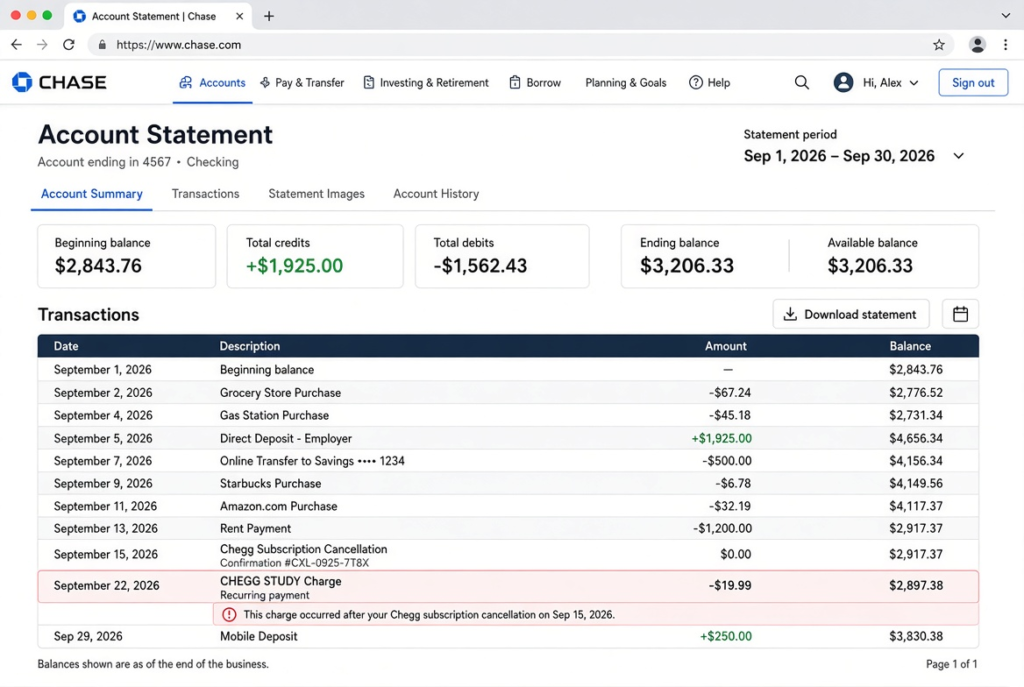
This is, unfortunately, a well-documented and federally recognized problem rather than an isolated glitch affecting only a few unlucky subscribers. According to the FTC’s complaint, Chegg continued billing thousands of customers after they requested cancellation. In some cases, Chegg failed to properly record cancellation requests because the process caused problems.
Start by checking your account status directly.
If this happens, first check your Chegg account and order history. Look for confirmation that Chegg processed and completed your cancellation. A confirmation email provides the clearest proof. If you don’t have one, check your account’s billing section. It should show whether Chegg still marks your subscription as active or cancelled.
If your account shows cancelled but you were charged anyway.
In this scenario, contact Chegg support immediately and provide the specific date of your original cancellation request, then ask directly for both an explanation of the charge and a refund for what appears to be an erroneous billing.
If your account still shows as active despite believing you’d cancelled.
This typically means the original cancellation request never actually finished processing on Chegg’s end, even if you believed at the time that it had. In this case, you’ll need to go through the cancellation steps again — ideally through a different method than you tried the first time. For example, if you originally attempted cancellation through the app and it didn’t stick, try calling support directly instead, since a different channel sometimes succeeds where the first one failed, and speaking with a live representative removes some of the ambiguity that comes with a purely automated online flow.
How Long Does It Take to Cancel Chegg Subscription?
For most subscribers, Chegg processes the cancellation request immediately or within a few hours. This happens after you complete all of Chegg’s confirmation screens. However, it’s important to understand that “cancelled” does not mean your access ends immediately that same moment — you typically retain your paid features through the end of the billing period you’ve already paid for, which could realistically be anywhere from just a few days to nearly a full month, depending on exactly where you are in your billing cycle when you submit the cancellation.
Phone or support-based cancellations may take slightly longer.
If you cancelled by phone or through direct customer support rather than through the self-service online form, processing may take a little longer than an instant online cancellation — sometimes up to 24 to 48 hours — since a representative typically has to manually update your account status on the back end rather than the change happening automatically and instantly the way a self-service form would process it.
When to actually follow up.
If more than two or three business days pass without receiving a confirmation email or without seeing any change in your account’s subscription status, that’s a reasonable point to proactively follow up rather than simply assuming everything processed correctly in the background. Waiting significantly longer than that without confirmation increases the risk that something in the process didn’t complete the way you expected.
Frequently Asked Questions About Canceling Chegg Subscription
Can I Cancel Chegg Subscription Without Logging In?
Yes, this is possible, though it does take an extra step compared to the standard online method. Contacting Chegg support directly and verifying your identity through your email address, billing details, or general account information allows a representative to process the cancellation on their end without requiring you to personally sign back into the account yourself.
How Do I Cancel Chegg Subscription From My Phone?
You have a few options here: use the Chegg app’s account and subscription settings directly, call Chegg’s support line and speak with a representative, or, if you originally subscribed through the App Store, check your iPhone’s Subscriptions list under the Settings app rather than going through Chegg’s own systems at all.
Will I Get a Refund After Canceling Chegg?
It genuinely depends on the specific timing involved. Cancelling shortly after a charge posts, or being charged after you’d already submitted a cancellation request, both meaningfully improve your chances of receiving a refund. That said, Chegg does not automatically issue a refund for every single cancellation by default, so it’s worth explicitly asking rather than assuming.
What Happens to My Chegg Account After Cancellation?
Chegg does not delete your account outright. Instead, your account typically returns to a free, limited-access status. Your order history and textbook rental obligations remain separate from the subscription. So, check for any pending returns even after you cancel your subscription.
Conclusion
Given Chegg’s documented history with cancellation complaints — serious enough to result in a $7.5 million settlement with the Federal Trade Commission — it’s genuinely worth being extra diligent every step of the way when you decide to cancel Chegg subscription. Whether you end up going through the website, the mobile app, your iPhone’s subscription settings, or a direct phone call to support, the same underlying principle applies consistently throughout every method: don’t consider anything truly finished until you have written, documented confirmation in hand. If a charge appears afterward and you believe it is incorrect, you can dispute it. Start with Chegg’s support team, your bank, or your card issuer. You can also contact the FTC if necessary.
If you’re working through cleaning up your subscriptions more broadly rather than just this one, our guides on how to cancel Netflix subscription and how to cancel a subscription and keep access until it expires cover very similar ground and are worth reviewing for other recurring services you may also be looking to close out.
For the complete details of the FTC’s action against Chegg, including the full scope of the allegations and the terms of the settlement itself, you can read the FTC’s official press release directly.