Introduction
If you want to cancel Adobe Creative Cloud subscription, the process is usually straightforward, but the steps and possible fees can depend on your Adobe plan and billing arrangement. Before canceling, it is worth checking your current plan details so you know what to expect.
Adobe may also offer different subscription terms for monthly and annual plans. Understanding your billing cycle can help you avoid unexpected charges or confusion about cancellation fees.
This guide explains how to cancel Adobe Creative Cloud, what happens after cancellation, whether you may qualify for a refund, and what to do if Adobe continues charging you after you cancel.
How to Cancel Adobe Creative Cloud Subscription
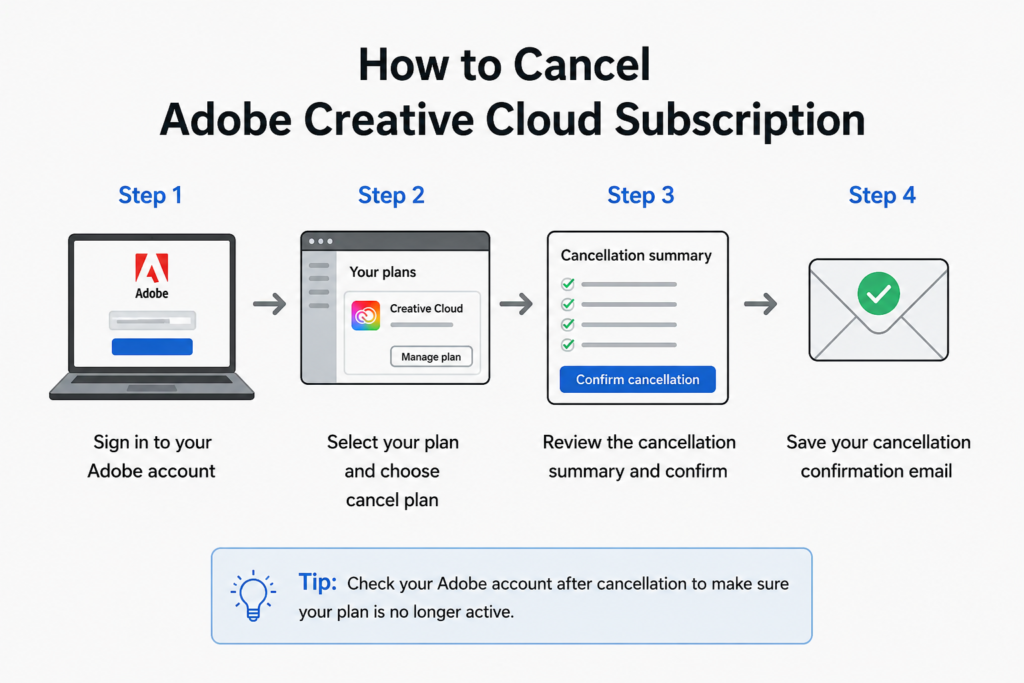
You can usually cancel your Adobe Creative Cloud subscription through your Adobe account. Before confirming the cancellation, review the plan information, billing details, and any cancellation terms displayed on your account.
Sign In to Your Adobe Account
Go to the Adobe website and sign in using the account connected to your Creative Cloud subscription. Once you are signed in, open your account or plans section to find your active subscription.
Make sure you are using the correct Adobe account, especially if you have more than one email address.
Open Your Subscription Details
Find your Creative Cloud plan and select the option to manage the subscription. Adobe will display information about your current plan, billing cycle, and available account options.
Look carefully for the cancellation option rather than changing your plan accidentally.
Start the Cancellation
Select the cancellation option and follow the instructions Adobe provides. You may be asked to choose a reason for canceling or review alternative plans before continuing.
Continue through the cancellation screens until Adobe shows the final confirmation. Do not assume the subscription is canceled simply because you started the process.
Review the Final Details
Before confirming, check whether Adobe shows any cancellation fee, refund amount, or remaining billing obligation. These details can depend on the type of plan you purchased.
Once the cancellation is complete, save the confirmation email or screenshot for your records.
Confirm That the Plan Is Canceled
Return to your Adobe account and check the subscription status after completing the process. A confirmation message or updated plan status can help verify that Adobe successfully processed the cancellation.
For the latest cancellation instructions, check Adobe’s official guide to canceling a subscription before completing the process.
How to Cancel Adobe Creative Cloud Subscription Online
Canceling your Creative Cloud plan online can be done through your Adobe account. The important part is to review the information Adobe displays before you complete the cancellation, especially if your plan has a specific billing commitment.
Before You Start
Have these details ready:
- The email address linked to your Adobe account
- Your current Creative Cloud plan
- Your next billing date
- Your payment information, if needed for verification
Checking the next billing date is useful because it can help you understand whether another payment may be approaching.
Use Adobe Account Management
Sign in to your Adobe account and open the section that shows your plans. Select your Creative Cloud subscription and choose the available option to manage or cancel it.
Adobe may display offers or alternative plans before allowing you to finish the cancellation. Read each screen carefully so you do not accidentally switch to another subscription instead.
Check the Cancellation Summary
Before submitting the final cancellation, look at the summary Adobe provides. Depending on your plan, it may show information about:
- Your cancellation date
- Any applicable fee
- A possible refund
- Remaining access to Creative Cloud
- Your next billing status
If something looks different from what you expected, review the terms before confirming.
Save Proof of Cancellation
Once Adobe confirms the cancellation, save the confirmation email or take a screenshot of the final status. This is particularly useful if another charge appears later.
You can also check your Adobe account again after cancellation to make sure the Creative Cloud plan no longer shows as an active subscription.
What Happens After You Cancel Adobe Creative Cloud?
Canceling your Creative Cloud subscription does not necessarily mean that everything disappears immediately. What happens next depends on your plan, cancellation terms, and the date when the cancellation takes effect.
Your Subscription Status Changes
After Adobe processes the cancellation, check your account to confirm that the plan is no longer set to renew. Keep the cancellation confirmation because it provides useful proof that you completed the process.
You May Keep Access for a Period
Depending on your plan and the terms shown during cancellation, you may continue to have access to Creative Cloud services for some time after submitting the cancellation. The exact access period can vary, so check the information Adobe provides when you cancel.
Your Files Need Attention
Canceling a Creative Cloud subscription can affect access to cloud storage and certain Adobe services. Before ending the plan, save your important files somewhere secure and make sure you can access anything you may need later.
Downloading important projects to your computer or another suitable storage location can help prevent unnecessary problems.
Future Renewals Should Stop
A successful cancellation should prevent the subscription from continuing according to the cancellation terms. Check your account and keep your confirmation so you have a record of the request.
If another subscription charge appears after you have confirmed cancellation, review your account and contact Adobe with your cancellation details.
Your Adobe Account Does Not Necessarily Disappear
Canceling Creative Cloud is different from deleting your entire Adobe account. Your Adobe account may continue to exist even after the paid subscription ends, depending on the services you use.
If you want to remove your entire Adobe account, that is a separate process from canceling Creative Cloud.
Can You Get a Refund After Canceling Adobe Creative Cloud?
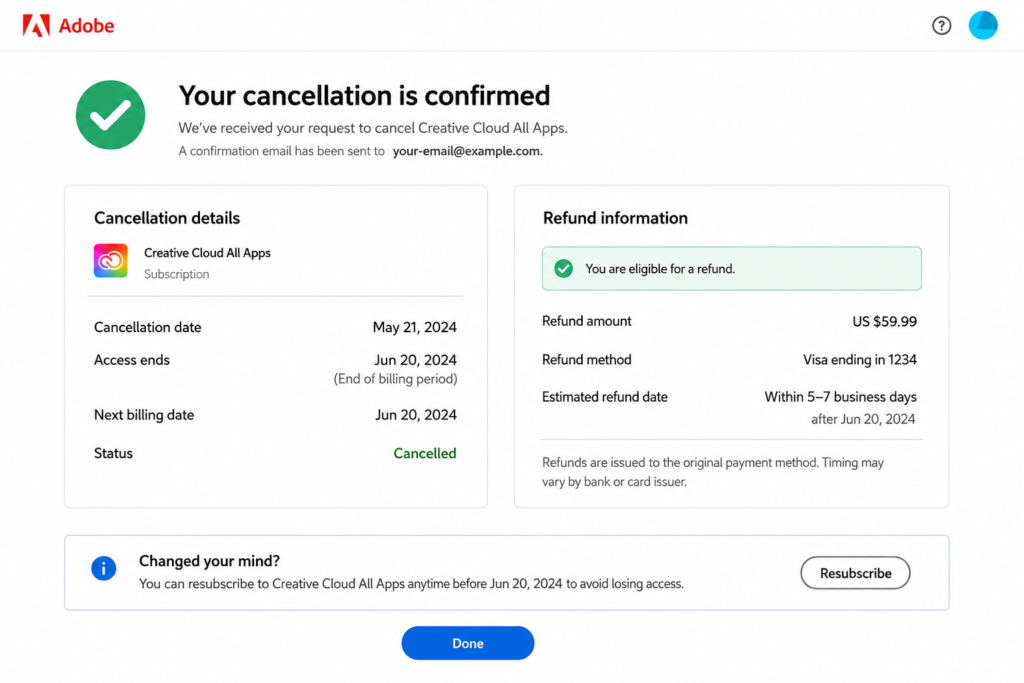
Whether you can receive a refund after canceling Adobe Creative Cloud depends on your plan, when you cancel, and the terms associated with your subscription. Adobe may show refund information during the cancellation process, so review the amount carefully before confirming.
Check the Refund Information
When you start the cancellation process, Adobe may display information about whether you are eligible for a refund. The amount can depend on the subscription type and how far you are into the billing period.
Don’t assume that every Adobe plan follows the same refund rules. Check the details shown specifically for your account before completing the cancellation.
What If You Were Recently Charged?
If Adobe recently charged you for Creative Cloud, check your billing information and the payment date. A recent charge does not automatically mean you will receive the entire amount back.
When you contact Adobe, provide the relevant billing information and explain that you want to cancel the subscription and ask about the available refund.
Refunds May Take Time
Even after Adobe approves a refund, the money may not appear in your payment account immediately. Processing time can depend on the payment method and your financial institution.
Keep your cancellation confirmation and refund details until the payment has been credited to your account.
What If You Do Not Receive the Expected Refund?
If Adobe confirms that you should receive a refund but the money does not appear within the timeframe provided, check your payment account first.
After that, contact Adobe Support with your cancellation confirmation, payment details, and any refund information you received. This gives the support team enough information to investigate the transaction.
Check Before You Cancel
If receiving a refund is important to you, review the cancellation summary before submitting the final request. Adobe may show the expected refund or any amount that could remain payable.
Taking a moment to check these details can help you understand the financial result before you cancel your subscription.
How to Cancel Adobe Creative Cloud During a Free Trial
If you started an Adobe Creative Cloud free trial and no longer want to continue, cancel it before the trial period ends to avoid Adobe moving you to a paid subscription. The exact timing and terms can depend on the trial you started.
Check Your Trial End Date
Sign in to your Adobe account and open your plan details. Look for the date when your free trial is scheduled to end.
Knowing this date is important because waiting until the last moment can leave you with less time to complete the cancellation.
Cancel Through Your Adobe Account
Open your Creative Cloud plan and select the option to manage or cancel it. Follow Adobe’s cancellation instructions and review each screen carefully.
Adobe may show alternative plans or offers before you complete the cancellation. Continue through the process until Adobe confirms that you canceled the trial or subscription.
Make Sure You Receive Confirmation
After completing the cancellation, check your email for a confirmation message or return to your Adobe account to verify the plan status.
A confirmation is useful proof that you canceled before the trial ended, especially if a payment appears afterward.
What If You Are Already Charged?
If the trial has already converted into a paid subscription, do not assume that canceling afterward automatically reverses the charge. Review the refund information Adobe provides and contact Adobe if you believe Adobe should refund the charge.
Keep your trial details, cancellation confirmation, and payment information available when requesting assistance.
Can You Cancel Adobe Creative Cloud Anytime?
You can request to cancel your Adobe Creative Cloud subscription, but the cost and timing of cancellation can depend on the type of plan you have. Adobe offers different subscription structures, so checking your specific plan before canceling is important.
Monthly Plans
A month-to-month plan is generally more flexible because there is no long annual commitment in the same way as an annual plan paid monthly. However, you should still check your account for the exact cancellation terms that apply.
Canceling before your next billing date can help prevent another monthly charge.
Annual Plans
Annual subscriptions can have different cancellation terms, particularly when you pay monthly throughout the year. Ending the plan before the commitment period is complete may result in a cancellation fee depending on the terms of your agreement.
For this reason, do not cancel an annual plan without first reviewing the cancellation summary Adobe displays.
Check Your Billing Date
Your next billing date is another important detail to check before canceling. If another payment is approaching, completing the cancellation earlier gives you more time to verify that the subscription will not renew.
Afterward, keep your confirmation as proof that the cancellation request was submitted.
The Best Time to Cancel
There is no universal “best” day for every Adobe subscriber. The right timing depends on your plan, renewal date, access needs, and the cancellation terms Adobe shows in your account.
If you are unsure, review the final cancellation screen carefully. It should provide the most relevant information for your particular subscription.
Does Adobe Charge an Early Cancellation Fee?
An early cancellation fee may apply depending on the type of Adobe Creative Cloud plan you have. This is particularly important for subscribers with an annual commitment who pay monthly, because ending the plan before the commitment period may have different financial consequences than canceling a month-to-month subscription.
Check Your Adobe Plan Type
Before canceling, open your Adobe account and review the details of your current plan. Look for information about whether the subscription is monthly, annual, prepaid, or another type of plan.
The plan type can affect what happens when you choose to cancel. Reading these details first can help you avoid an unexpected charge.
Review the Cancellation Summary
Adobe should provide relevant cancellation information during the cancellation process. Before you click the final confirmation button, carefully review any amount shown as a cancellation fee or remaining charge.
If the displayed amount seems unexpected, stop and review your plan terms before completing the cancellation.
Annual Plans Need Extra Attention
An annual plan billed monthly can have different cancellation conditions from a simple monthly subscription. If you cancel before the annual commitment ends, Adobe may apply the terms associated with that commitment.
For that reason, checking the exact cancellation amount shown for your account is more reliable than assuming every Creative Cloud subscriber will receive the same result.
How to Avoid Unexpected Charges
The safest approach is to check your plan details and cancellation summary before confirming. Take a screenshot of the final information if you want a record of the amount Adobe displayed.
Once you understand the fee, refund, and effective cancellation date, you can decide whether canceling now makes financial sense or whether another available plan would better suit your needs.
What If You Cannot Cancel Adobe Creative Cloud?
If Adobe does not let you complete the cancellation, the problem may be related to your account, payment status, subscription type, or a temporary issue with the cancellation process. Start by checking your Adobe account carefully before trying again.
Check Your Account and Plan
Sign in to the Adobe account that holds the Creative Cloud subscription. If you have more than one Adobe account, make sure you are using the correct email address.
Open your plan details and check whether the subscription is active, pending cancellation, or showing another status. This can help you determine whether the cancellation has already been submitted.
Look for a Payment Issue
A pending payment or billing problem may affect what options appear in your account. Review your billing information and check whether Adobe has displayed any payment-related notification.
If there is an unresolved billing issue, take note of it before continuing with cancellation.
Try the Cancellation Process Again
If the page does not load correctly or the cancellation option disappears, sign out and sign back in. You can also try accessing your account from another browser or device.
Avoid submitting multiple cancellation requests without checking your account status first. You could create unnecessary confusion about whether the original request was successful.
Contact Adobe Support
When the online process still does not work, contact Adobe Support and explain exactly where the cancellation process stops. Provide your subscription details and any error message you received.
Ask the representative to confirm whether your subscription is still active and what steps are required to complete the cancellation.
Keep Evidence of Your Request
Save screenshots, emails, error messages, and support conversations related to the cancellation. These records can be useful if another charge appears after you attempted to cancel.
Once Adobe confirms the cancellation, check your account again and keep the confirmation until you are certain that the subscription will not renew.
Why Is Adobe Still Charging Me After Cancellation?
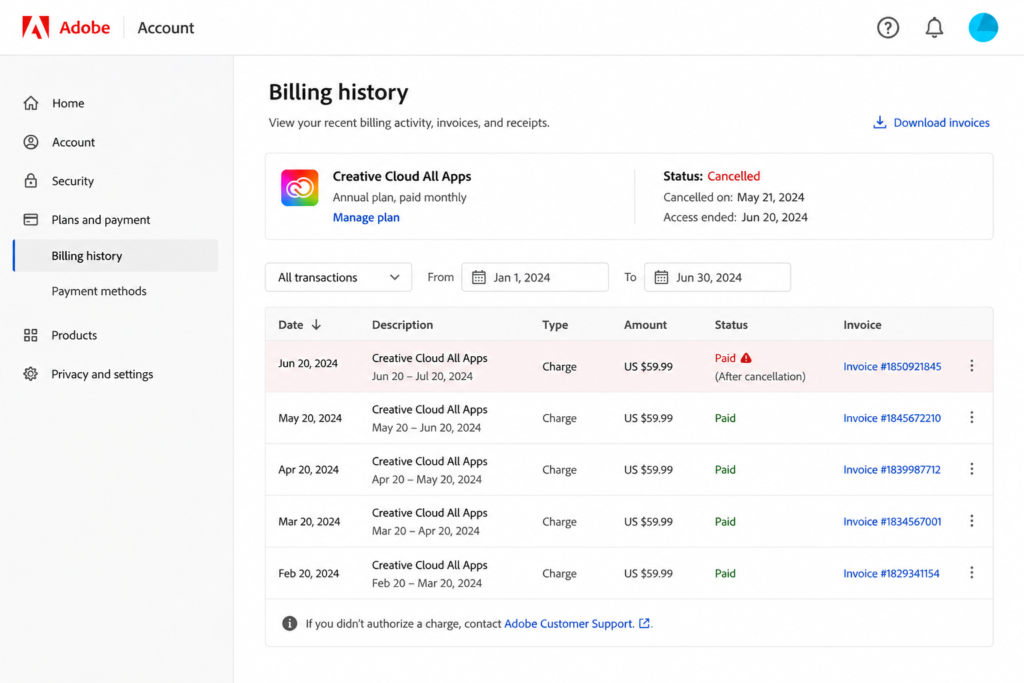
If Adobe charges you after you believe you canceled Creative Cloud, first check your cancellation status and the date it took effect. The charge may relate to a billing cycle that had already started, or you may not have completed the cancellation.
Check Your Cancellation Status
Sign in to your Adobe account and review your plan details. Look for a cancellation confirmation, updated subscription status, or information showing whether the plan is still scheduled to renew.
If you received a cancellation email, compare its date with the date of the charge. This can help determine whether the payment happened before or after the cancellation took effect.
Review Your Billing History
Open your Adobe account’s billing information and identify the charge. Check the payment date, amount, and subscription associated with it.
Sometimes users have more than one Adobe subscription or account, so make sure the charge belongs to the Creative Cloud plan you canceled.
Check for Another Active Plan
If you use several Adobe products or have multiple Adobe accounts, another active subscription could be responsible for the payment. Review your account carefully before assuming that Adobe charged you for the canceled plan.
Finding the exact subscription connected to the payment can make the issue much easier to resolve.
Contact Adobe About an Unexpected Charge
If the charge occurred after your cancellation was confirmed, contact Adobe Support and provide your cancellation confirmation and billing information. Explain when you canceled and when the unexpected payment appeared.
Ask Adobe to review the transaction and clarify whether the payment qualifies for a refund.
Keep Your Records
Save your cancellation confirmation, billing information, screenshots, and communication with Adobe. These records can help establish when you submitted the cancellation and what Adobe confirmed.
If the issue remains unresolved, having complete documentation makes it easier to explain the situation when you contact Adobe again.
If Adobe does not resolve an unexpected charge after you have canceled, you can learn more about How the Chargeback Process Works and the steps involved in disputing a billing charge.
How Long Does Adobe Creative Cloud Take to Cancel?
Adobe Creative Cloud cancellation can usually be completed during the online cancellation process, but the exact timing of the status change, access ending, or refund can vary depending on your plan.
Cancellation vs. Refund Timing
These are not necessarily the same process. Your subscription may be marked as canceled while a refund is still being processed.
If Adobe confirms that a refund is due, check the payment method you originally used and allow time for the transaction to appear.
Check Your Account After Canceling
After completing the cancellation, return to your Adobe account and review your plan status. Look for confirmation that the subscription will no longer renew.
You should also keep the cancellation email or confirmation message. This can help you verify when the request was completed.
What If Your Plan Still Looks Active?
An active-looking account does not always mean the cancellation failed. Depending on your plan, you may continue to have access for a period after cancellation.
Check the cancellation details and effective date rather than relying only on whether you can still access Creative Cloud.
When Should You Contact Adobe?
If the cancellation status is unclear, a renewal charge appears unexpectedly, or Adobe does not provide the refund you were told to expect, contact Adobe Support.
Provide your cancellation confirmation, billing information, and relevant dates so the issue can be reviewed more efficiently.
Frequently Asked Questions About Canceling Adobe Creative Cloud
What Happens to My Creative Cloud Files After Cancellation?
Your Adobe account and files are not necessarily deleted simply because you cancel a paid plan. However, your access to certain Creative Cloud services and storage can change after the subscription ends. Download important files before canceling if you need continued access.
Will I Lose Access Immediately After Canceling?
Not necessarily. The access you retain can depend on your subscription and the cancellation terms shown by Adobe. Check the confirmation screen for the date your paid access ends.
How Can I Check Whether My Subscription Is Canceled?
Sign in to your Adobe account and open your plan details. Look for a cancellation confirmation or a status showing that the subscription will not renew. You should also keep any confirmation email you receive.
Can I Restart Adobe Creative Cloud After Canceling?
In many cases, you can subscribe to an Adobe Creative Cloud plan again after canceling. Your available plans and pricing may be different when you return, so review the current options before restarting.
What Should I Do If Adobe Charges Me After Cancellation?
First, check your cancellation confirmation and billing history to determine when the charge occurred. If the payment appears to have been made after a confirmed cancellation, contact Adobe Support with your cancellation and payment details and ask them to review the charge.
Conclusion
To cancel Adobe Creative Cloud subscription, sign in to your Adobe account, open your Creative Cloud plan, and follow the cancellation process provided for your subscription.
Before confirming, pay close attention to the cancellation summary. Your plan type can affect whether an early cancellation fee applies, whether you qualify for a refund, and how long you continue to have access to Creative Cloud.
After cancellation, save your confirmation and check your Adobe account to make sure the subscription is no longer scheduled to renew. If you expect a refund, monitor your payment method and keep your billing records until the transaction is complete.
Taking these steps can help you cancel your Creative Cloud subscription while avoiding unexpected charges or confusion about your plan.