Struggling to cancel your DoorDash DashPass? Follow this step-by-step guide to cancel your subscription on iPhone, Android, or Desktop instantly and avoid unwanted monthly fees.
Introduction
Did you sign up for a free trial of DoorDash DashPass to save on delivery fees for a specific order, only to realize months later that you’re still paying $9.99 a month? You are not alone. Subscription fatigue is real, and DashPass is one of those services that is easy to join but can be confusing to leave if you don’t know exactly where to look.
Whether you are trying to cut down on monthly expenses, switching to Uber Eats or Grubhub, or simply don’t order enough food to justify the cost, cancelling your membership should be straightforward.
In this comprehensive guide, I will walk you through exactly how to cancel DoorDash DashPass on the mobile app, via a web browser, and even how to handle tricky third-party subscriptions through Apple or Roku. Let’s stop those recurring charges right now.
What You Need to Know Before Cancelling
Before we dive into the steps, there are a few critical things to keep in mind regarding your billing cycle and potential refunds:
- You Keep Your Benefits: Usually, when you cancel DashPass, you will continue to have free delivery benefits until the end of your current billing period.
- No Automatic Refunds: DoorDash typically does not offer refunds for the days you didn’t use the service. Once the charge hits your credit card, it is final (unless you contact support for a specific exception).
- The “Pause” Option: Sometimes, DoorDash will try to keep you by offering to “pause” your membership for a month instead of cancelling. Be careful not to click this by accident if your goal is to quit permanently.
Method 1: How to Cancel DashPass on the Mobile App (iOS & Android)
This is the most common way to cancel since most people use DoorDash on their phones. This method works for both iPhones and Android devices, assuming you signed up directly through DoorDash with a credit card.
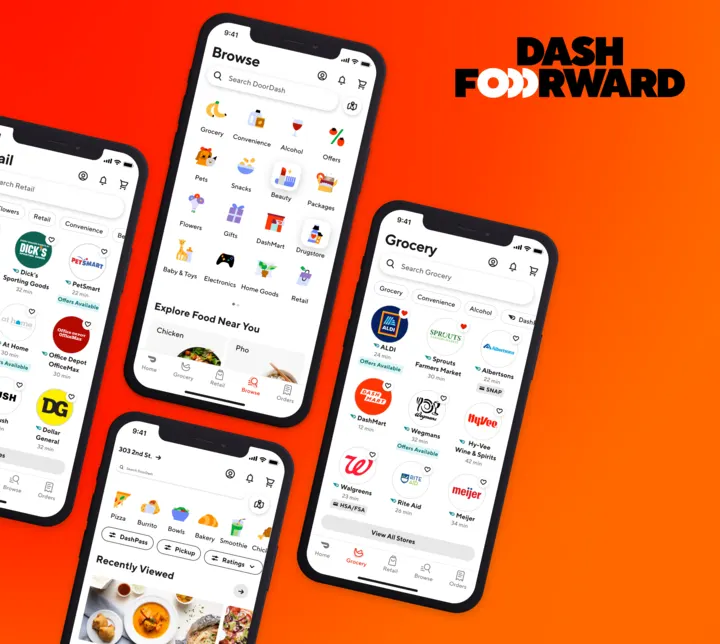
Step 1: Open the DoorDash App
Launch the application on your smartphone and ensure you are logged into the account associated with the DashPass subscription.
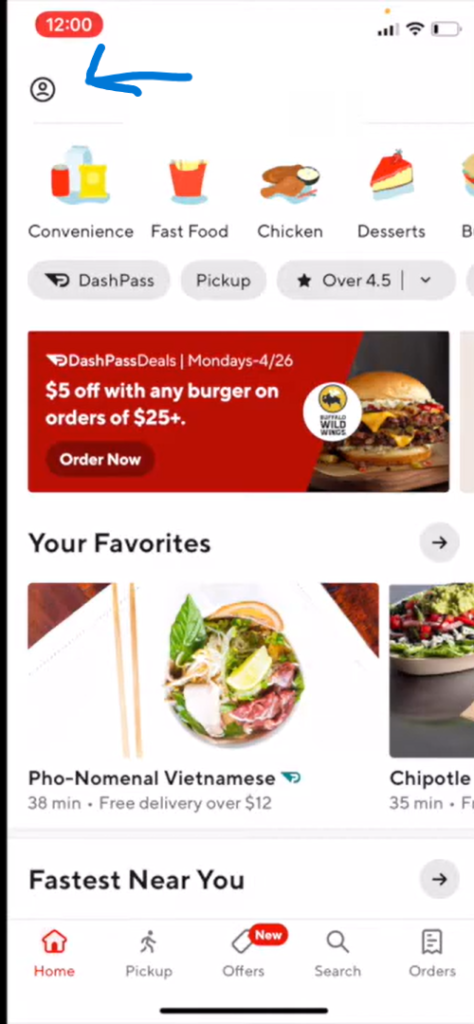
Step 2: Go to Account Settings
Look at the top-left corner (or sometimes bottom right, depending on the update) for your Profile Icon. It usually looks like a silhouette of a person or your initials. Tap on it.
Step 3: Select “Manage DashPass”
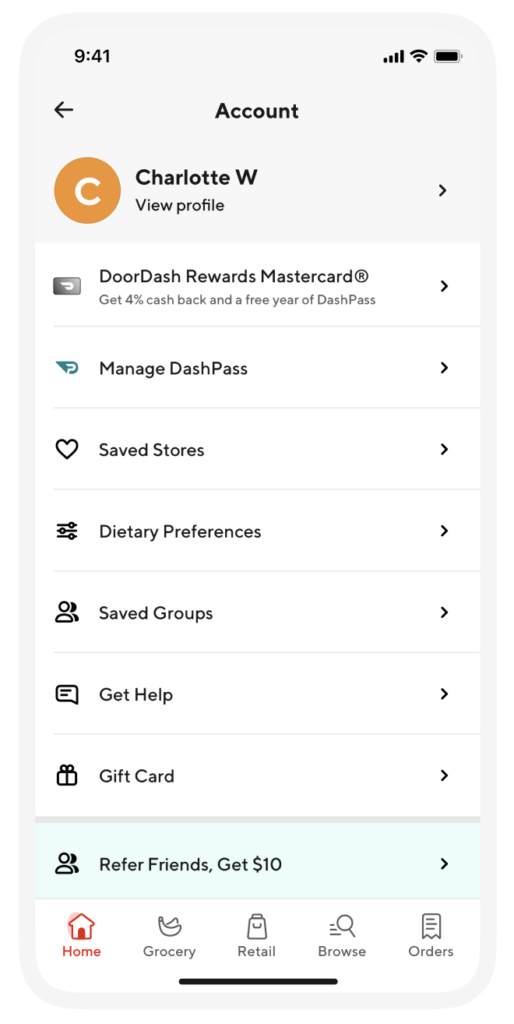
In the account menu, you will see a list of options like “Payment Methods,” “Addresses,” etc. Look for the button that says “Manage DashPass”. It is usually highlighted or near the top.
Step 4: Tap “End Subscription”
On the DashPass management page, you will see your next billing date and how much you have saved. Scroll down until you see a button that says “End Subscription” or “Cancel Membership.”
Note: DoorDash might ask you why you are leaving. You can select a reason or skip this.
Step 5: Confirm Cancellation
This is where they try to keep you. They might show a screen saying “Are you sure? You saved $20 this month!” Ignore the marketing text and tap “End Subscription” again to finalize the process.
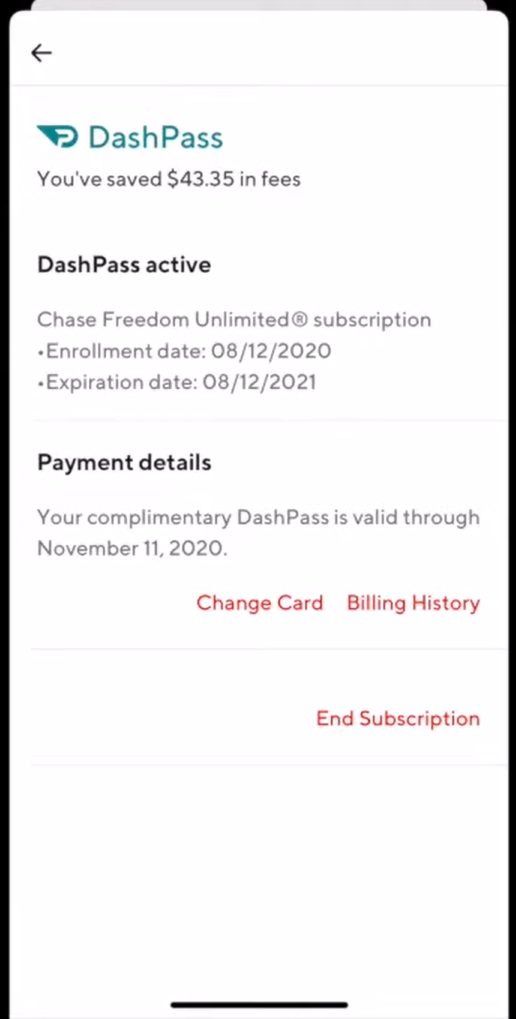
Success! You should receive an in-app confirmation and an email verifying that your auto-renew has been turned off.
Method 2: How to Cancel DashPass on Desktop (Web Browser)
If you don’t have your phone handy or prefer using a computer, the desktop process is just as fast.
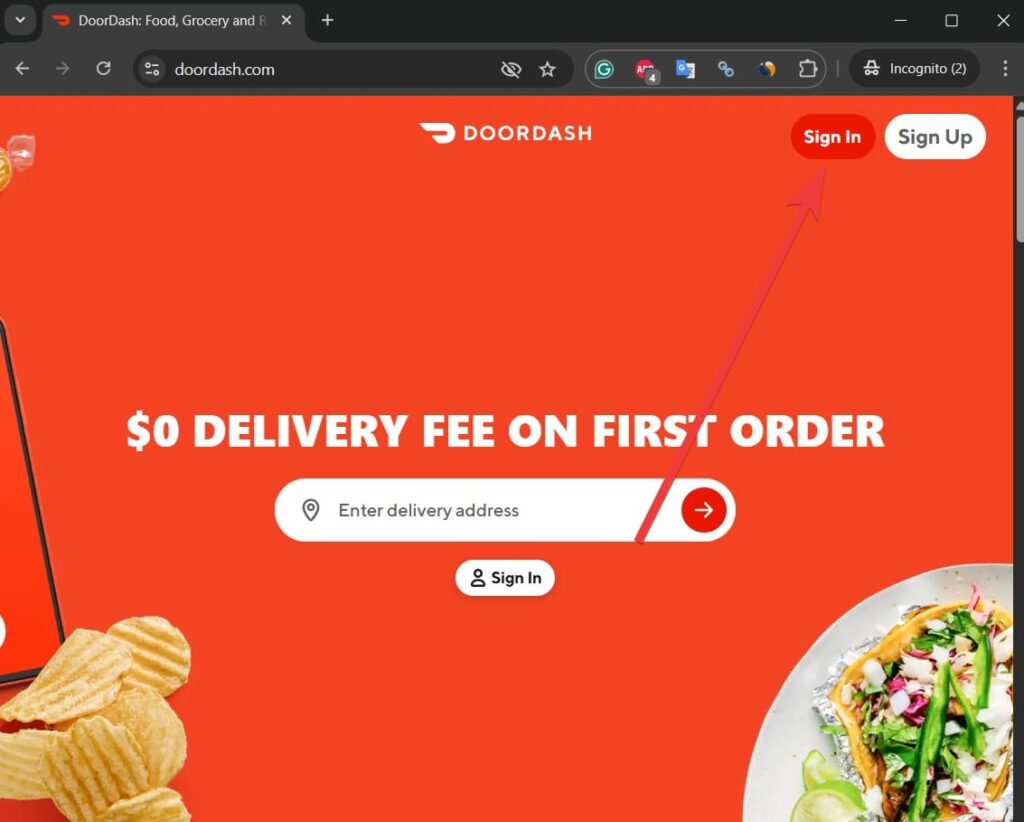
- Log In: Go to DoorDash.com and log in to your account.
- Open Menu: Click on the three lines (hamburger menu) in the top left corner.
- Click DashPass: Select “Manage DashPass” from the sidebar menu.
- Cancel: Click on “End Subscription.”
- Confirm: Follow the prompts to confirm your choice.
Method 3: “I Can’t Find the Cancel Button!” (Third-Party Subscriptions)
This is the number one problem users face. You go to “Manage DashPass” in the app, but there is no cancel button.
Why does this happen? It happens because you didn’t sign up with a credit card directly inside the DoorDash system. Instead, you signed up using your Apple ID or Google Play Store. In this case, DoorDash cannot cancel the subscription for you; you must do it through your phone’s app store settings.
If You Are on iPhone (iOS):
- Open your iPhone Settings app.
- Tap on your Name/Apple ID at the very top.
- Tap on Subscriptions.
- Find DoorDash in the list of active subscriptions.
- Tap Cancel Subscription.
If You Are on Android (Google Play):
- Open the Google Play Store app.
- Tap your profile icon in the top right.
- Tap Payments & subscriptions > Subscriptions.
- Find DoorDash.
- Tap Cancel subscription.
Common Problems & Troubleshooting
1. The “Delete Account” Mistake
Many users think that deleting the DoorDash app from their phone cancels the subscription. It does not. You will keep getting charged. Similarly, deleting your DoorDash account entirely can sometimes be tricky if a subscription is still active. Always cancel the subscription before deleting the account.
2. Removing Your Credit Card
If you are paranoid about being charged again, try removing your credit card from the app.
- Go to Account > Payment Methods.
- Swipe left on your card to delete it.
- Note: DoorDash might require at least one card on file if you have an active subscription, so cancel the subscription first.
3. Chase Sapphire Reserve & DashPass
If you have the Chase Sapphire Reserve or Preferred credit card, you might have a free DashPass membership activated as a card benefit.
- To Cancel: You usually don’t need to cancel this if it is free, but if the promotional period is ending, you must log in to the DoorDash app and check if the payment source is set to renew automatically to your Chase card.
Frequently Asked Questions (FAQ)
Q: Can I get a refund if I forgot to cancel DashPass? A: Officially, DoorDash’s policy says no refunds. However, if the charge just hit your account today and you haven’t used the service since the renewal, you can try contacting DoorDash Customer Support via the live chat in the app. Be polite, explain it was a mistake, and ask for a “courtesy refund.” It doesn’t always work, but it’s worth a try.
Q: If I cancel now, do I lose my free delivery immediately? A: No. If you paid for the month on the 1st and cancel on the 5th, you will still have free delivery until the 30th (or whenever your billing cycle ends).
Q: How much does DashPass cost in 2026? A: DashPass currently costs $9.99 per month. There is also an annual plan for $96/year, which saves you money but locks you in for longer.
Conclusion
Canceling DoorDash DashPass doesn’t have to be a headache. Whether you use the direct in-app method or need to dig into your iPhone settings, following these steps ensures you won’t see that surprise $9.99 charge on your next bank statement.
Pro Tip: If you cancel but still want food delivery, keep an eye out for “Come Back” offers. DoorDash often sends emails offering extended free trials to customers who recently cancelled!
Found this guide helpful? Share it with a friend who spends too much on takeout!